How to confirm a new task
When a new task is assigned to you, it appears in the New tasks section.
Until you confirm it, the task remains pending. To start working on it, you need to confirm the task.

Where to find a new task
Open the New tasks section — this is where all tasks waiting for your confirmation are displayed.
If there are many tasks, use the filter:
1. Tap the filter icon 

2. Select the appropriate parameters:
Sorting — choose which tasks appear at the top of the list:
-
Closest to completion time
-
Closest to overdue time

-
Task type — vehicle pick-up or drop-off

-
Date — select the required dates in the calendar

-
Vehicle — enable the toggle and choose a specific vehicle to see tasks related only to it

3. Tap Apply to update the list.
How to view a task
To open a task, tap it in the list.

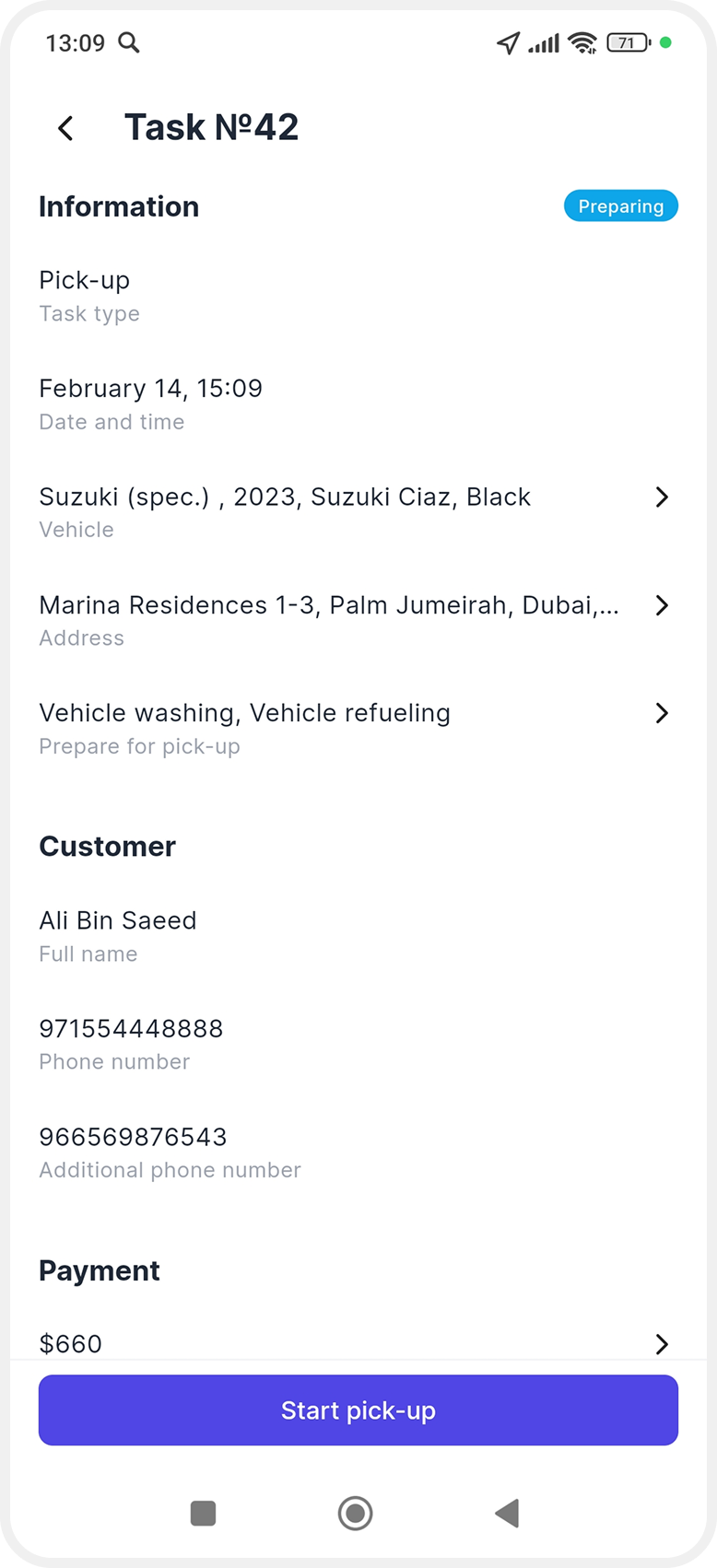
In the task card, you will see:
-
Task type — pick-up or drop-off
-
Date and time
-
Vehicle
-
Customer name
-
Address
-
Map with the task location
Tap the map to view the location in more detail.

The Route to pick-up/drop-off location button will open navigation in your phone’s map service (for example, Google Maps), where you can build a route.
How to confirm a task
To accept the task, tap Start pick-up.
After that, the task will move to the Active section, and you can begin completing it — either the vehicle pick-up or drop-off.