Vehicle drop-off
After you complete the vehicle drop-off, all related information appears in the Vehicle drop-off tab on the booking page.
Here you can review the drop-off details and add any missing information if necessary.
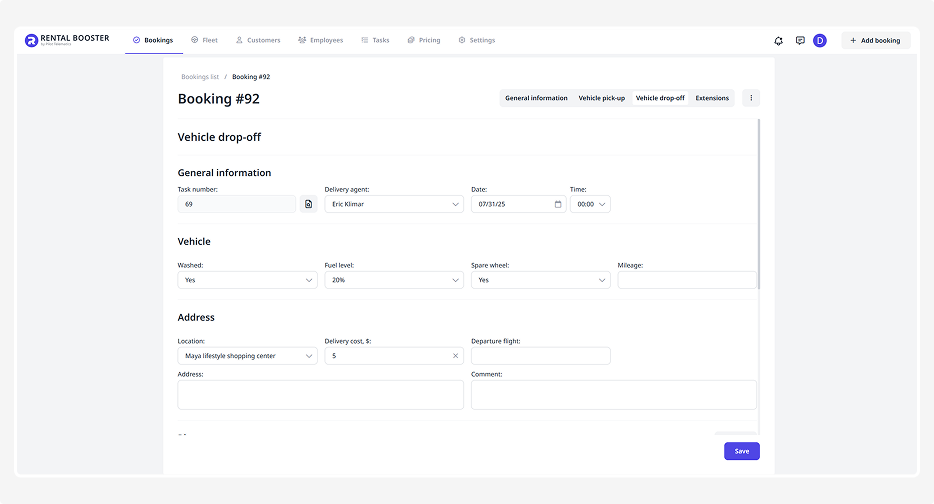
The Vehicle drop-off tab consists of several blocks:
• General information
• Vehicle
• Address
• Photos
• Violations
• Calculation
General information
This section includes:
• Task number — an automatically assigned number for the drop-off task
• Delivery employee — the staff member who received the vehicle from the customer
• Date and time of drop-off — when the customer returned the vehicle
Vehicle
This block specifies the vehicle details at the time of return:
• Whether the car was washed before drop-off
• Fuel level in the tank
• Availability of a spare wheel
• Mileage at the moment of drop-off
Address
This section shows the drop-off address:
• Location and delivery cost
• Customer’s flight number (if applicable)
• Exact address where the vehicle was returned
Photos
This block contains the photos of the vehicle at the time of return.
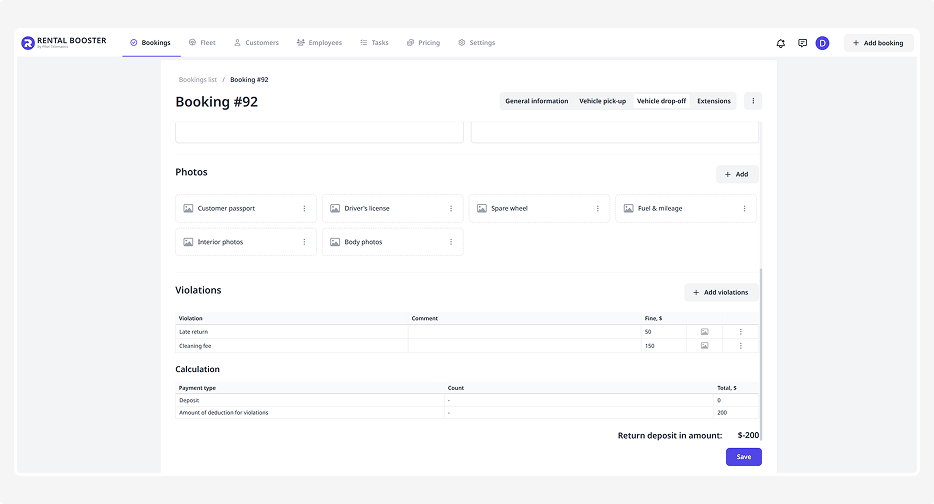
To add a photo:
1. Click Add
2. Enter a name
3. Select the file from your device
4. Click Save
Violations
This block lists all recorded rental violations.
To add a violation:
1. Click Add
2. In the violation form, select the violation from the list. You can pre-configure the list and fine amounts in the Violations tab
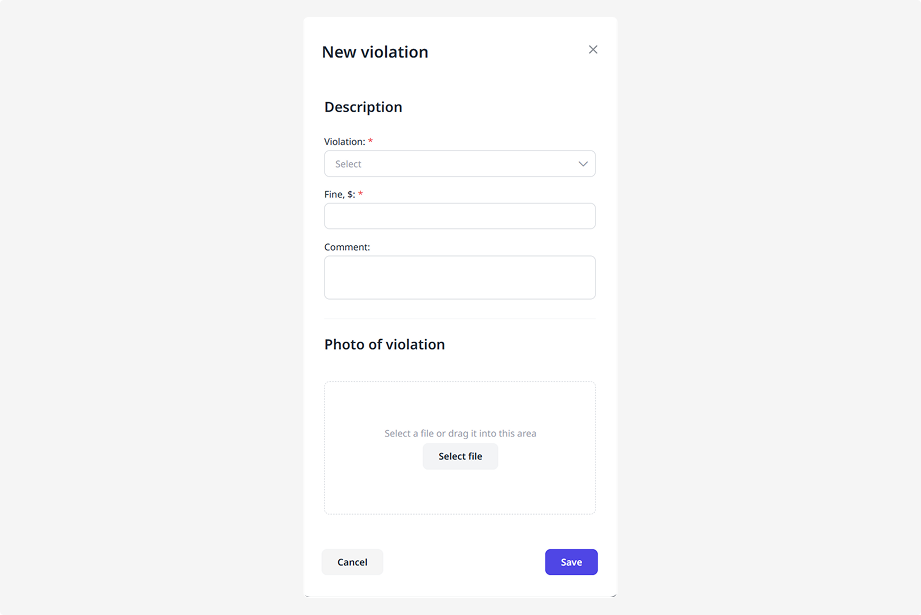
3. The system will automatically insert the violation name and fine amount
4. Add a comment if needed
5. Attach a photo if available
6. Click Save
Calculation
The final block displays cost details related to the drop-off:
• Payment types (for example: deposit, violation fines, change of drop-off location)
• Deposit deductions — how much should be withheld from the deposit
• Refund amount — how much should be returned to the customer
After updating any information in the Vehicle drop-off tab, click Save.