
Bookings
In the Bookings tab, you can view, search, and open all bookings linked to a specific vehicle.
Here, you can track who is renting the vehicle, when it’s booked, which manager is responsible, and check key details such as dates, cost, and customer contact information.
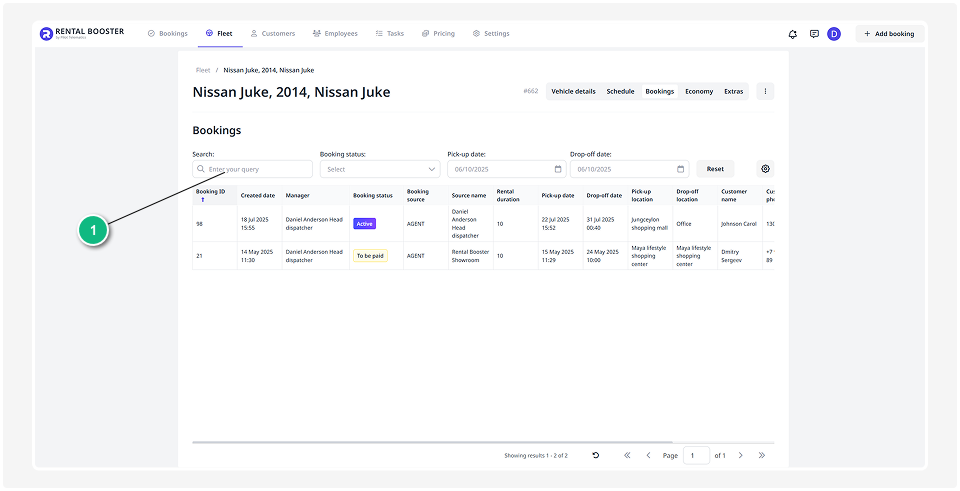
1 — Filters
All booking information is displayed in a table.
Each row represents one booking, and the columns show:
• Booking number
• Assigned manager
• Booking status
• Source and its name (for example, website or chat bot)
• Rental duration in days
• Start and end date and time
• Pick-up and drop-off locations
• Customer name and phone number
• Quick icons to contact the customer via messengers
• Total rental cost
How to find a specific booking
To quickly locate the booking you need, use the filters above the table:
• Search — type the customer’s name, booking number, or any other detail
• Booking status — choose, for example, Active or Completed
• Booking period — select the date range manually or using the calendar
To clear the filters and view the full list again, click Reset.
How to open a booking
If you want to view details or make changes:
1. Double-click on the row with the desired booking
2. You’ll be taken to the Booking page, where you can review and edit its details if needed