
Tasks
A task is an action that a fleet employee must perform as part of a booking.
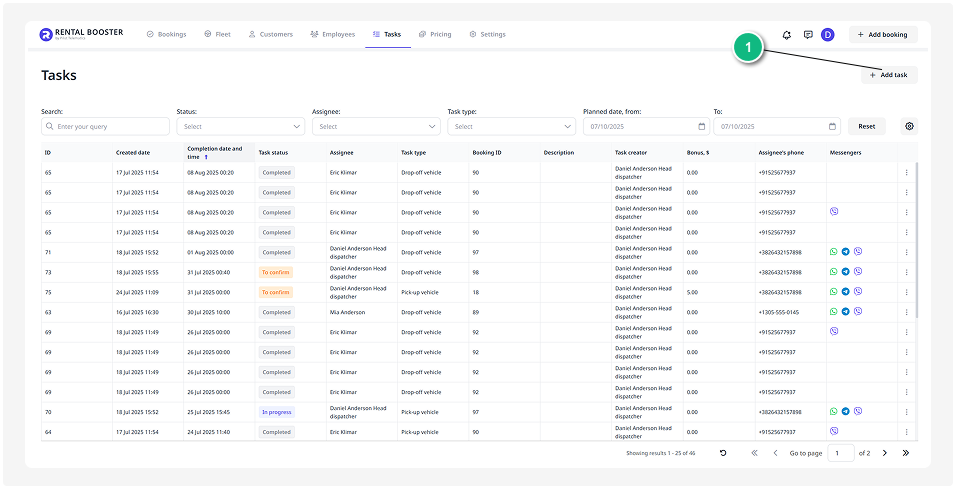
There are two types of tasks in the system:
• Pick-up — preparing and handing over a vehicle to the customer
• Drop-off — receiving the vehicle back after the rental ends
Each task includes:
• Type — what needs to be done: hand over or receive the vehicle
• Assignee — the employee responsible for completing the task
• Planned date — when the task should be completed
• Status — the progress stage of the task
• Contacts — the executor’s phone number and messengers
Task statuses
Each task goes through several stages. The status helps you understand the current progress:
• Unassigned — the task was created but no executor has been assigned yet
• To confirm — the task has been created and sent to the executor for confirmation
• Accepted — the executor has accepted the task and will start working on it
• Preparing — the executor is preparing the vehicle for the booking
• Overdue — the due time has passed, but the task hasn’t been completed or updated
• In progress — the executor is currently performing the task
• Hold — the task execution has been paused
• Completed — the task has been successfully completed
• Canceled — the task has been canceled and doesn’t require further action
1. Automatically
When a new booking is created, the system automatically generates two tasks:
• Pick-up
• Drop-off
You can assign executors immediately or do it later.
2. Manually
Sometimes tasks need to be created manually — for example, if the booking was made outside the system (a client called directly or sent a request by email).
In this case, the rental manager collects the necessary details by phone and manually creates a booking — the task is then also added manually.
How to add a task
1. In the Tasks section, click Add task
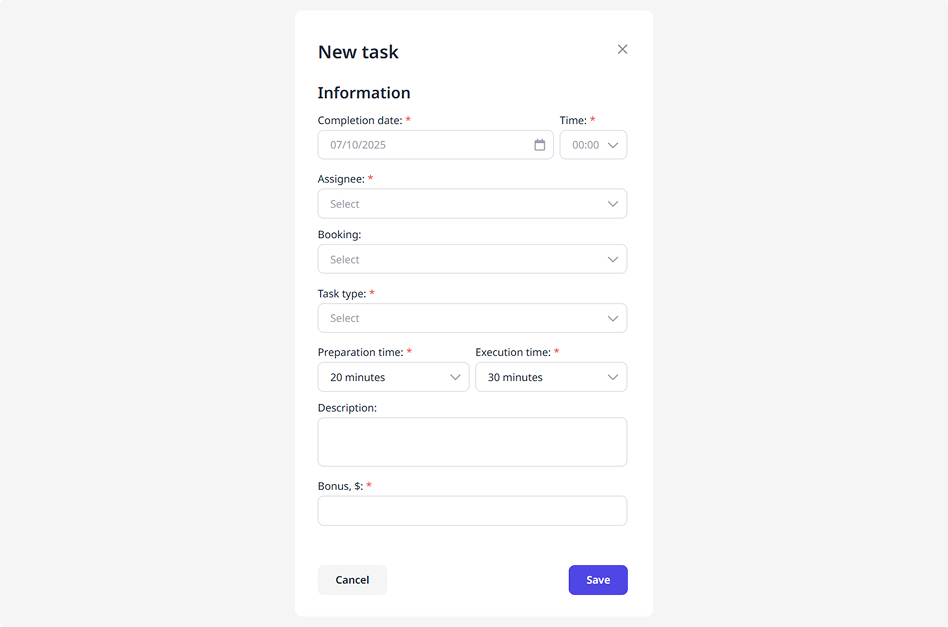
2. In the pop-up window, fill in the following details:
• Completion date and time
• Assignee
• Associated booking
• Task type
• Preparation and execution time
• Additional information
• Assignee bonus
3. Click Save. The task will appear in the list
How to view or edit a task
— double-click the task row to open the task card
— or click the three dots on the right side and choose an action:
• Edit — open the task card to update the date, executor, or description
• Set status — manually update the progress stage of the task
• Delete — completely remove the task if it’s no longer relevant