TARS
TARS is the Dubai Roads and Transport Authority (RTA) system used to manage vehicle rentals. It is used to record and exchange data related to the rental of cars, buses, and motorcycles.
Connect the TARS integration to automatically synchronize bookings with Rental Booster.
How to connect TARS
1. Open the Integrations section

2. Find the TARS integration card and click Connect

3. In the Connect to TARS window, fill in the following fields:

-
Login — the username for your company's TARS account
-
Password — the password for your TARS account
-
Agreement ID — your company's agreement number in the TARS system
-
Email for verification code — the email address where TARS sends verification codes
-
Email password — the password for the specified email account
If two-factor authentication is enabled for your TARS account, TARS sends a one-time verification code (OTP) to the email address associated with the account whenever you sign in.
To allow Rental Booster to authenticate automatically, enter the email address that receives these verification codes, along with its password.
If the verification codes are sent to a different email address, configure automatic email forwarding so that these messages are forwarded to the email account used for the integration.
Once this is configured, Rental Booster will automatically retrieve the verification codes and use them to sign in to TARS.
|
4. Click Connect
If all information is correct, Rental Booster will establish the connection and bookings from TARS will begin syncing automatically.
How to find the agreement ID in TARS
1. Sign in to your TARS account
2. In the main menu, open the Company section
3. Go to the Company tab
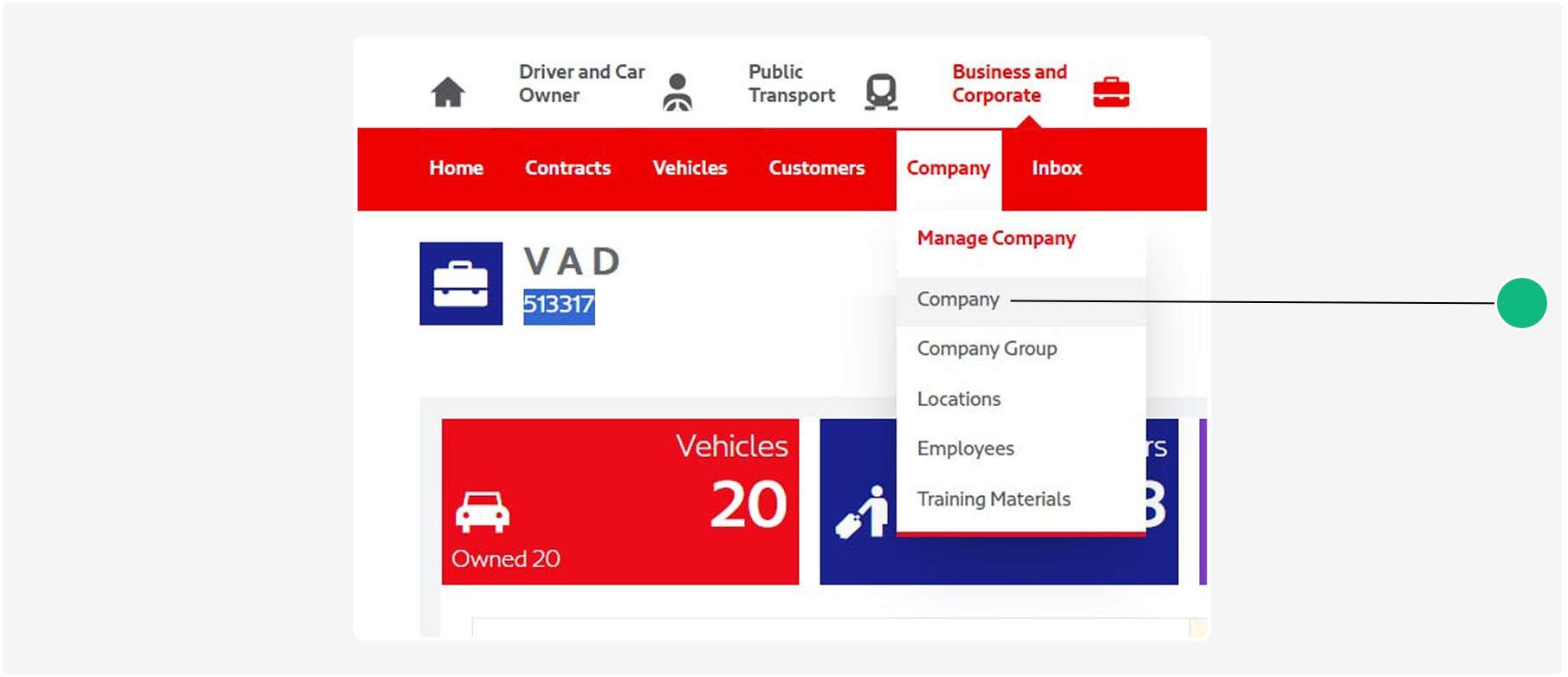
4. Locate your Agreement ID
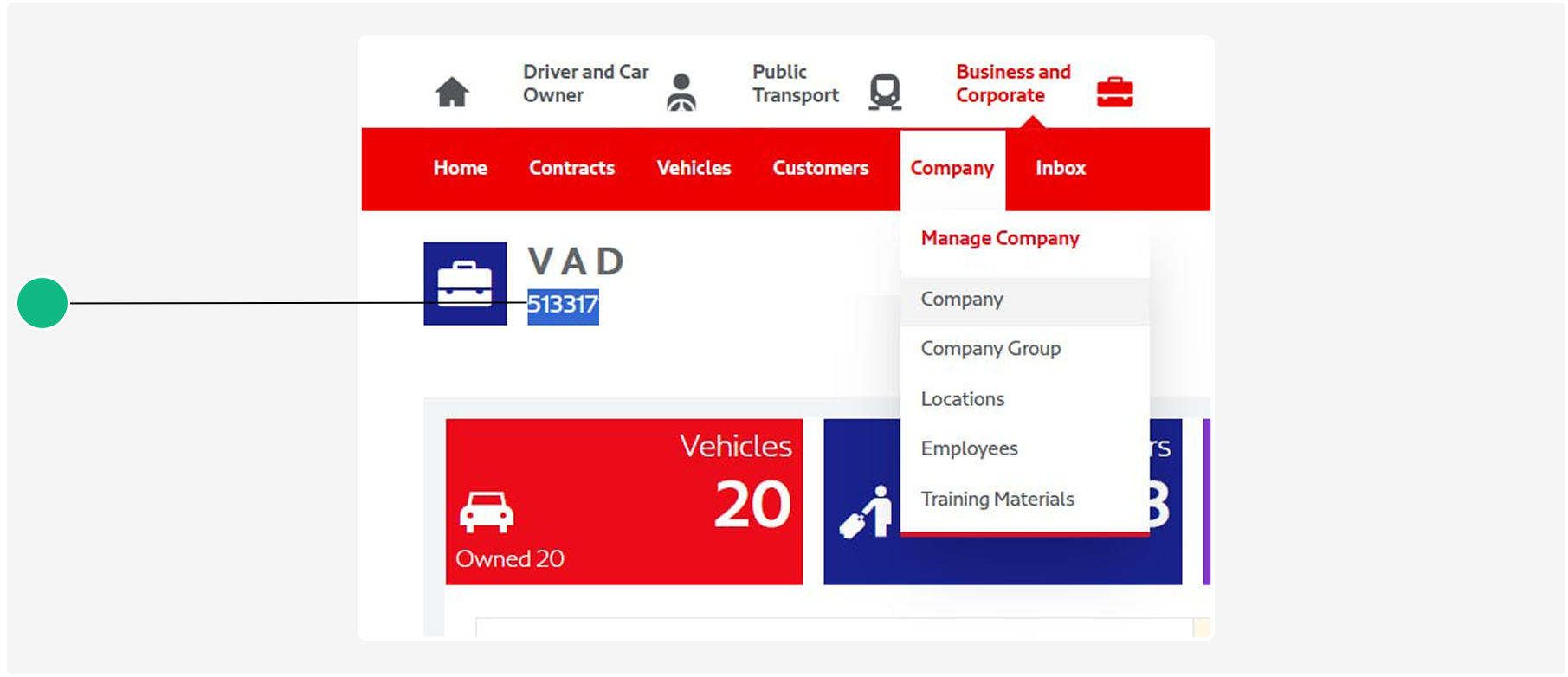
5. Copy the Agreement ID and paste it into the Agreement ID field when connecting the integration

Working with TARS bookings
After the integration is connected, booking updates are automatically synchronized from Rental Booster to TARS.
Booking actions
When a vehicle is handed over to or returned by a customer, Rental Booster automatically sends the relevant information to TARS and updates the booking status.
If necessary, you can also perform TARS actions manually.
To do this:
1. Open the required booking
2. Click the  (More actions) button
(More actions) button3. Select the required action, for example Close in TARS
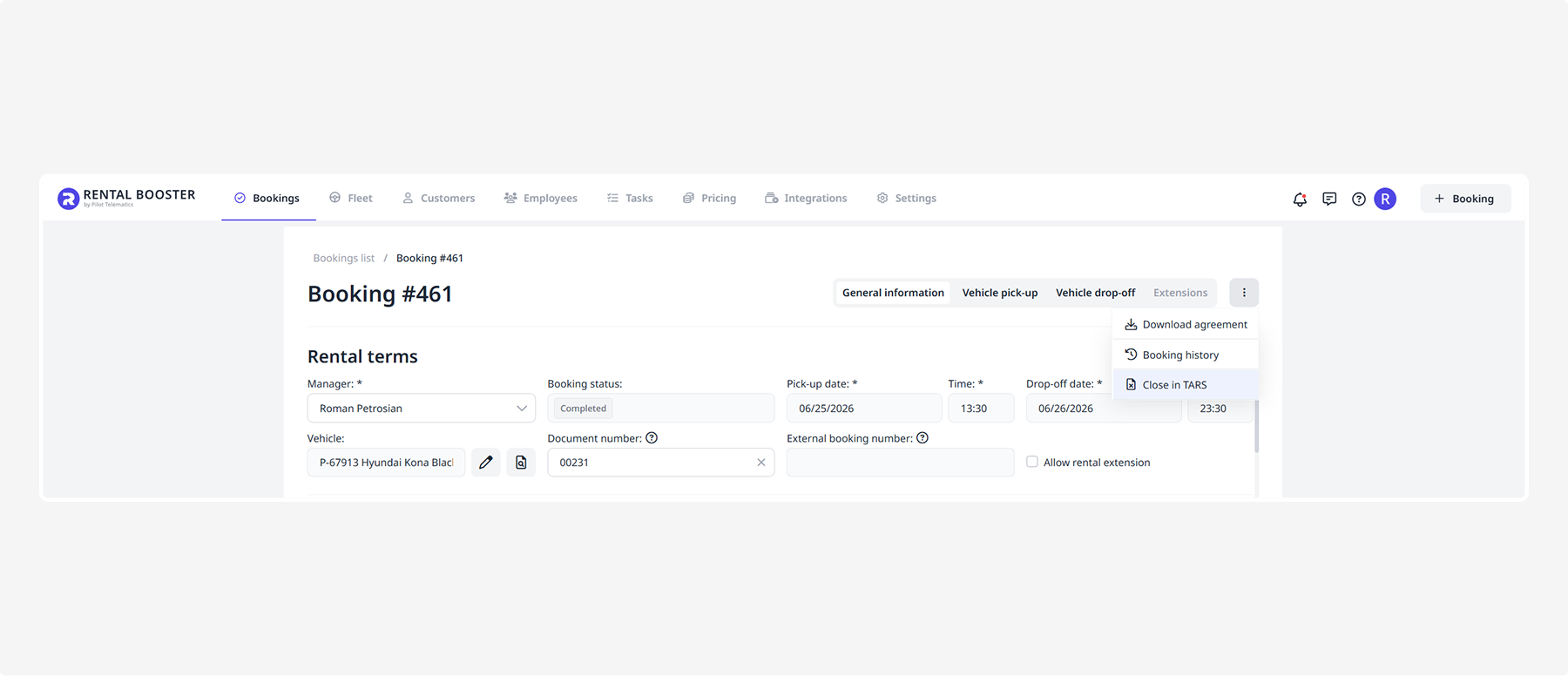
After the request is successfully processed, the booking will be closed in TARS.
TARS statuses
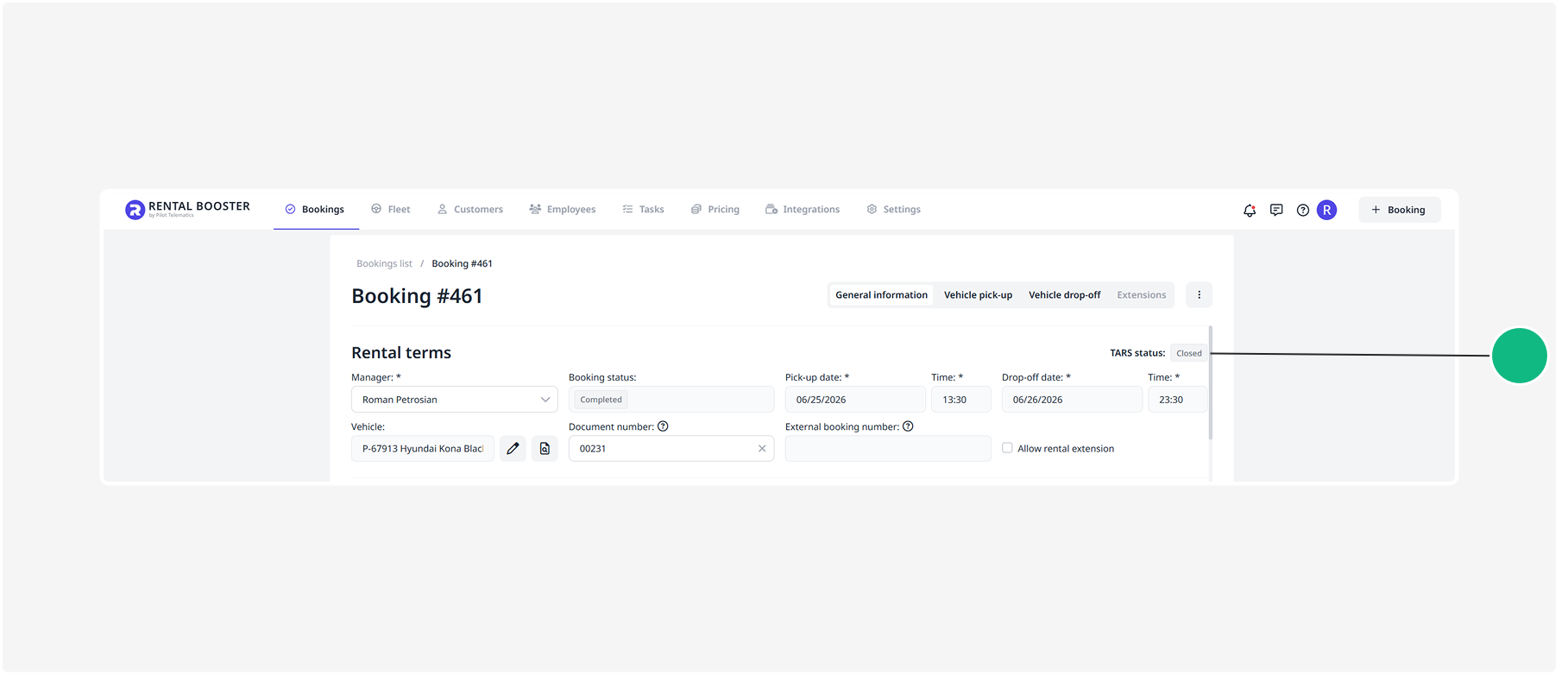
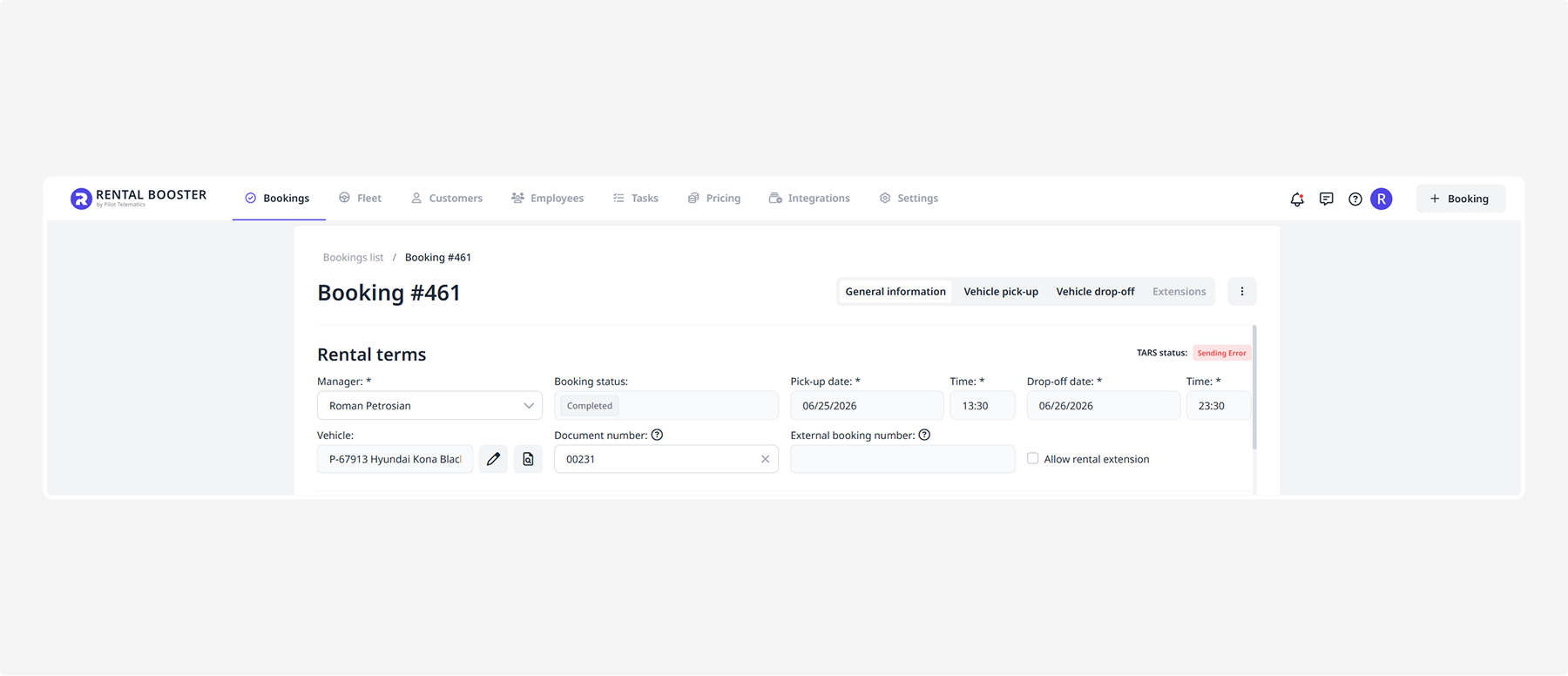
After data is sent to TARS, the current booking status is displayed on the booking page.
Main statuses
-
Open — the booking has been successfully created in TARS and is active
-
Closed — the booking has been successfully closed in TARS
-
Canceled — the booking has been canceled in TARS
Data transfer statuses
During data synchronization between Rental Booster and TARS, temporary processing statuses may be displayed.
-
Sent to TARS Creation — Rental Booster is sending the booking to TARS for creation
-
Sent to TARS Closing — Rental Booster is sending the booking to TARS for closure
-
Sending Error — an error occurred while sending data to TARS
If the Sending Error status is displayed, hover over the status to view the error details. The same error information is also available in Notifications. After resolving the issue, resend the data.
TARS notifications
All notifications received from TARS are automatically displayed in the Notifications section of Rental Booster.
For example, notifications may include:
-
booking created
-
booking closed
-
TARS authorization errors
-
data transfer errors
