Roles
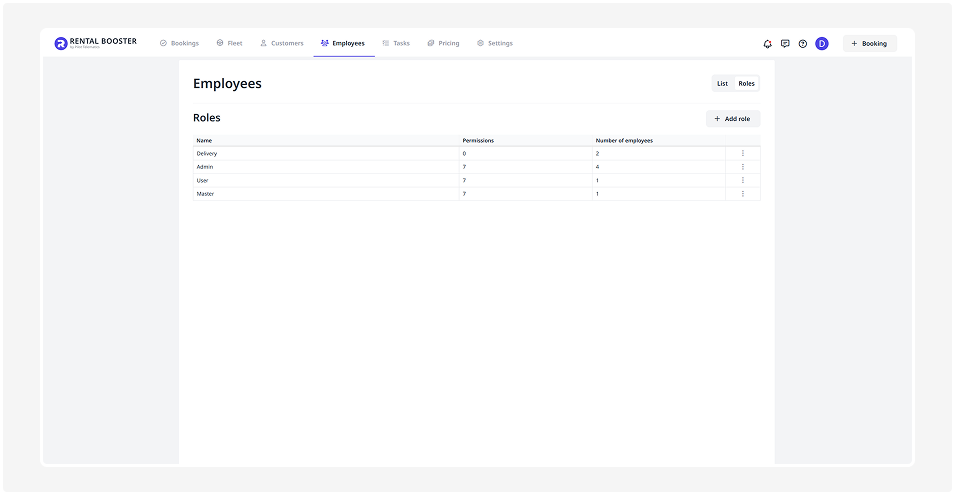
Each employee can be assigned a role that defines which functions and sections they can access.
In this tab, you can:
— create a new role — for example, Operator, Delivery staff, or Rental manager
— configure permissions — specify which sections are accessible and what actions can be performed there
— edit or delete existing roles
How to create a role
1. In the Roles tab, click Add role
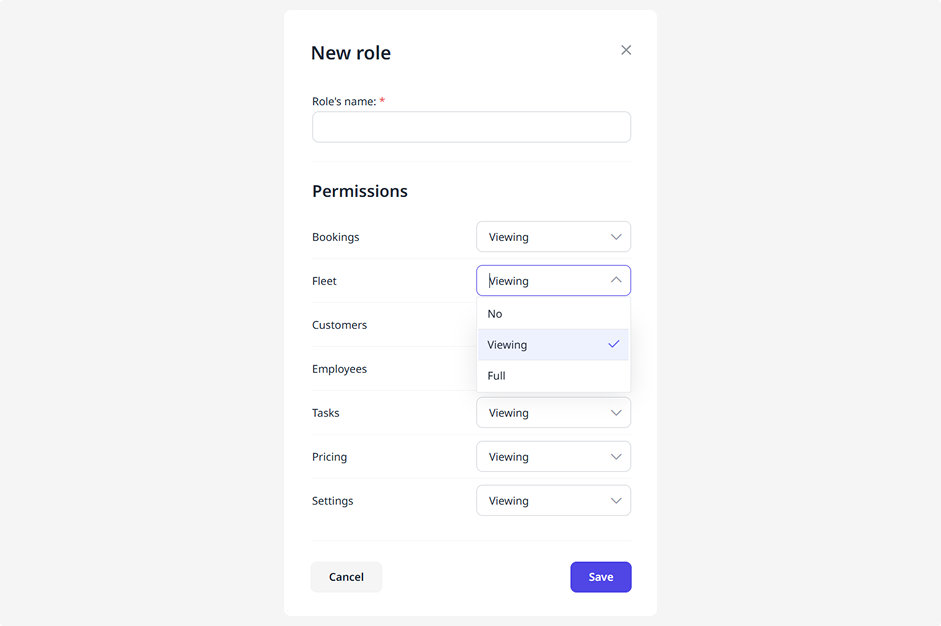
2. In the new window, enter:
• Role name (for example, Rental manager)
• Сhoose which sections will be accessible and what level of access applies:
— full access
— view only
— no access
3. Click Save
The new role will appear in the list and become available when adding employees.
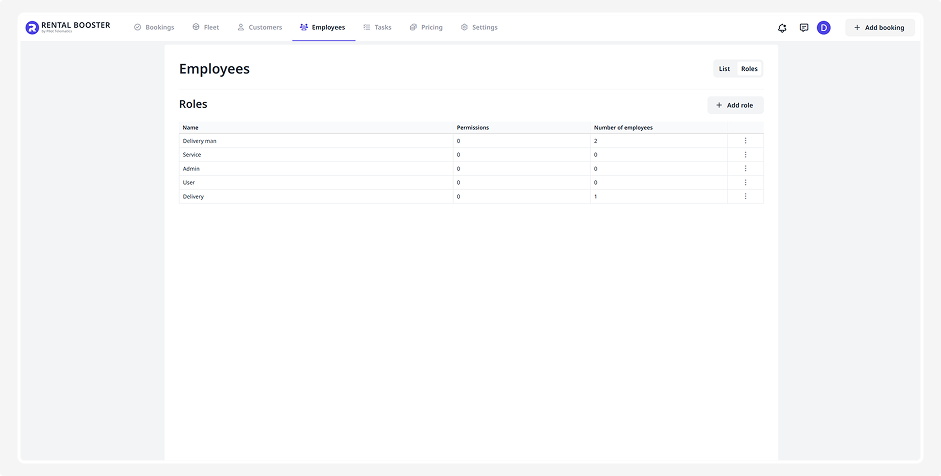
Role list
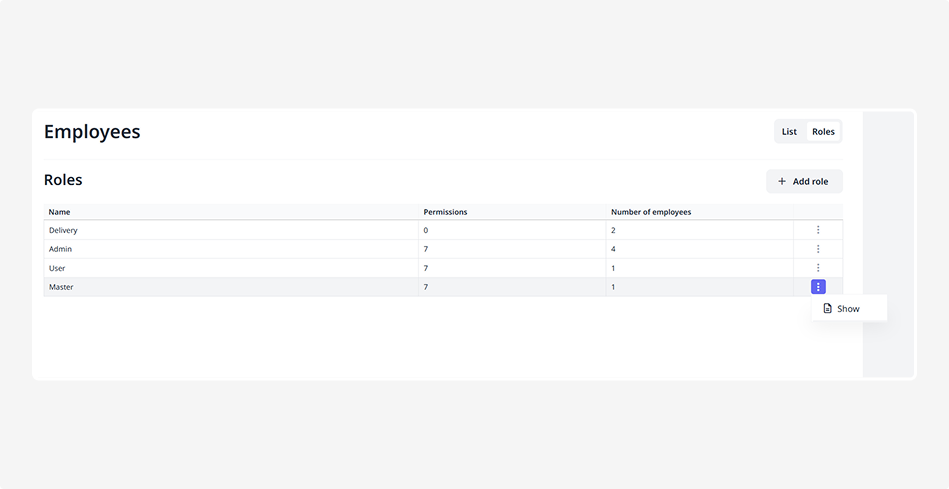
In the list of roles, you can see:
• The role name
• The number of assigned permissions
• The number of employees with this role
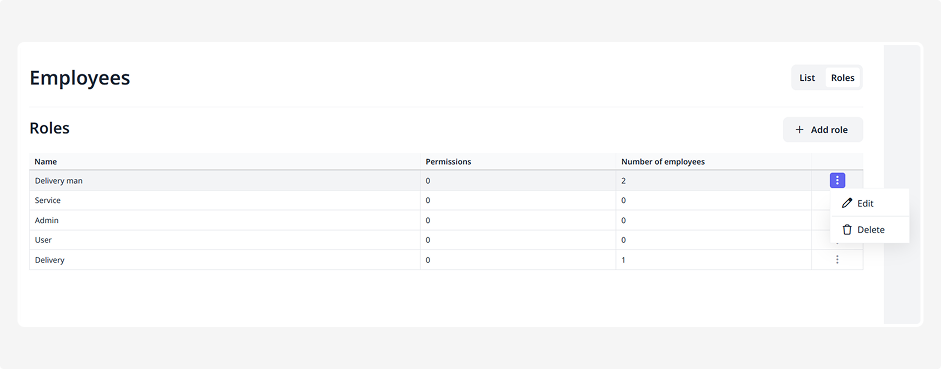
To manage a role, click the three dots next to it and select an action from the menu:
• Edit — open the role card and update its permissions. If you change a role’s permissions, they will automatically update for all employees who have that role assigned.
• Delete — remove the role if it’s no longer needed. After deletion, employees who had this role will no longer have an assigned role.
Role types
In the CRM, roles help define access levels and responsibilities — who can view data, manage settings, and perform actions in the system.
Master
This role is created automatically during registration — it is the account owner.
— has full access to all sections and settings
— cannot be deleted or modified
— permissions are fixed
Administrator
A user with full system management access.
— can work with all main sections
— can add and manage users
— used for day-to-day administration
User
A basic role for employees.
— suitable for working with specific tasks and data
— permissions can be customized individually
Delivery
A special role for handling vehicle handover and return tasks via the mobile application.