
Profile
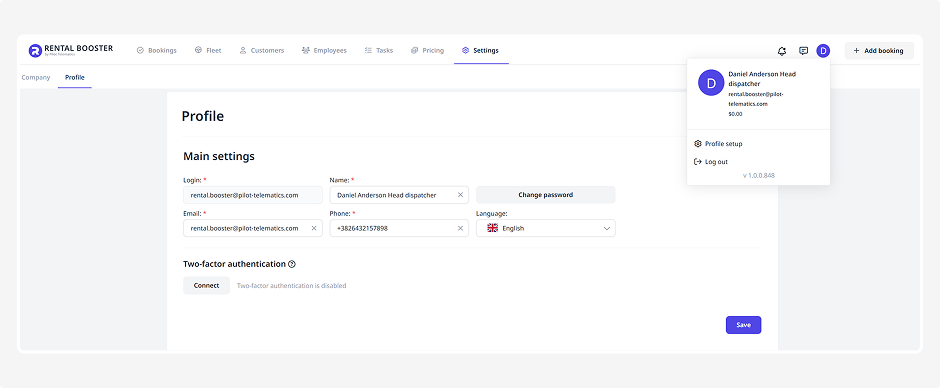
In this subsection, you can update your personal information, change your system login password, and enable two‑factor authentication for added account security.
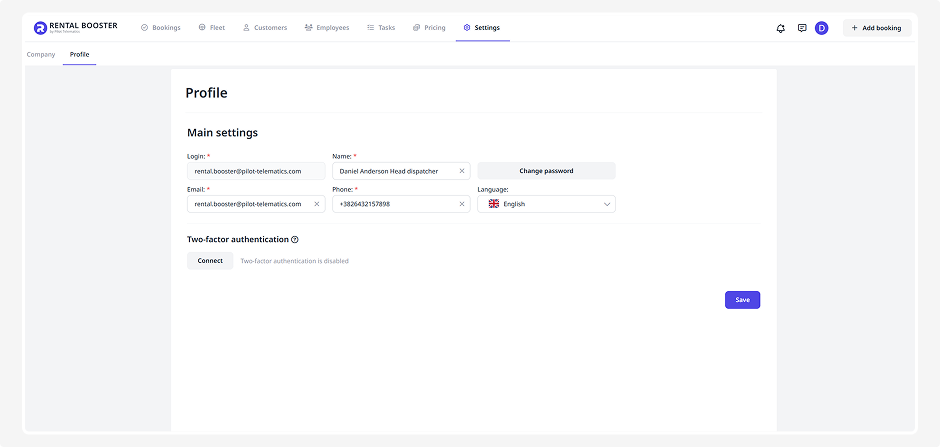
Main settings
Here you can view and edit:
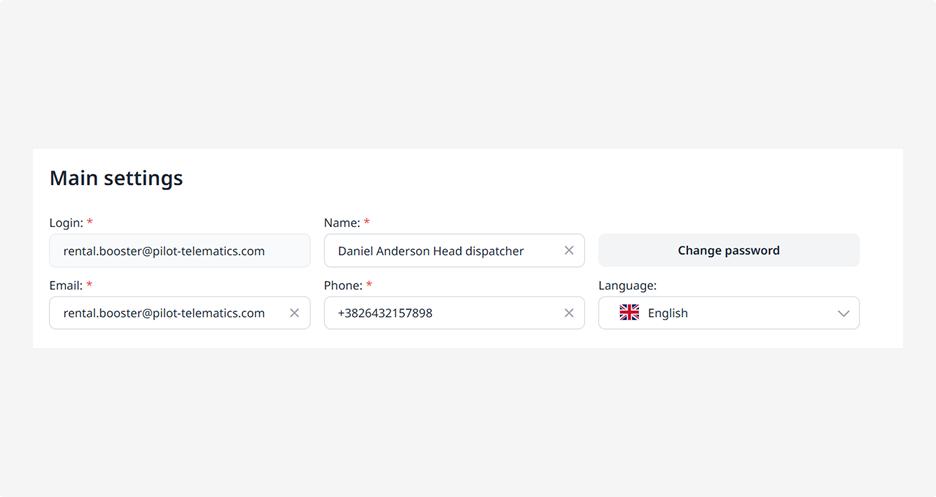
• Login — the name you use to sign in to the system
• Name — your profile display name
• Email — your contact email address
• Phone — your contact number
-
Telegram
 — connect a Telegram bot to receive notifications
• Interface language — select the language you prefer to work in
How to change your password
1. Click the Change password button
2. A password reset link will be sent to the email address associated with your account
3. Follow the link and set a new password
How to connect the Telegram bot
You can receive notifications in Telegram — for example, about new bookings.
Telegram notifications are available for bookings received via integrations (LocalRent, Yango, TARS).
1. In the Telegram field, enter the phone number linked to your Telegram account
2. Click the connect icon
3. A window with an authorization code will appear
4. Then:
-
open the Telegram bot
-
press Start
-
enter the code from the window
The code is valid for a limited time and may refresh automatically.
|
If the code is entered correctly, the bot will confirm the connection.
If you no longer want to receive notifications:
1. Open the Telegram bot
2. Select Unsubscribe from notifications in the menu
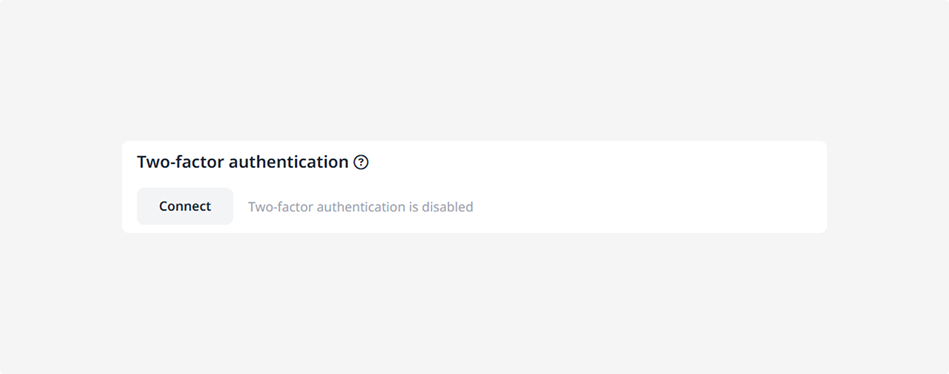
Two-factor authentication
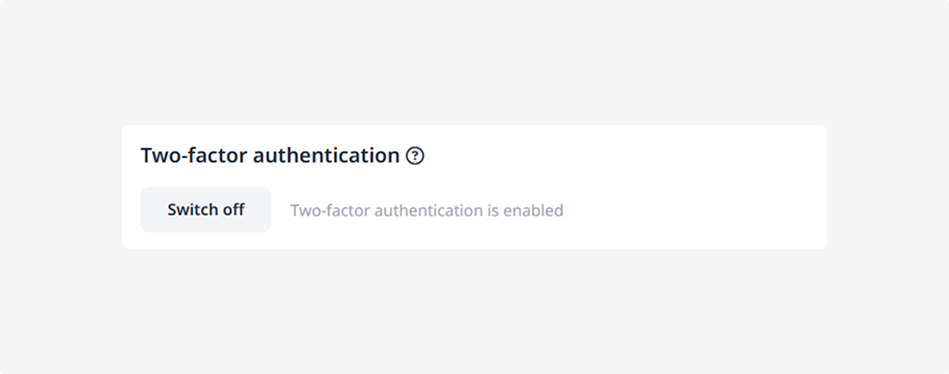
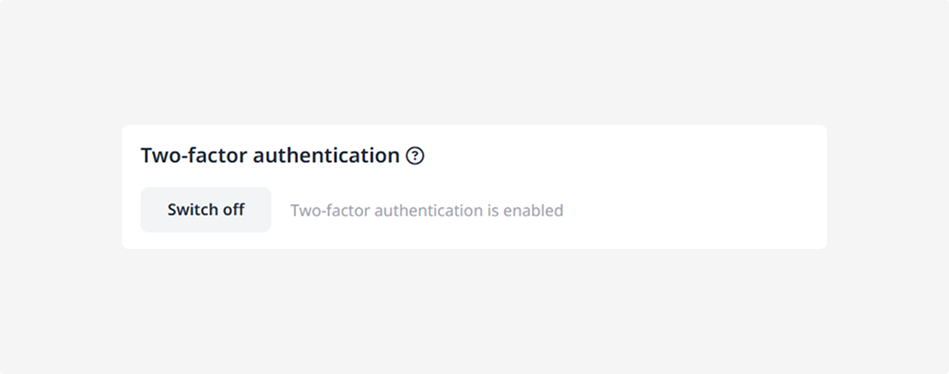
Two-factor authentication provides an extra layer of security for your account. In addition to your username and password, you must enter a one-time verification code to sign in.
Even if someone knows your password, they won't be able to access your account without this code.
The system supports two verification methods:
-
Authenticator app — a one-time code is generated in a mobile authenticator app and refreshes every 30 seconds
-
Email — a one-time code is sent to your selected email address each time you sign in
Sign in with an authenticator app (TOTP)
With this method, a one-time verification code is generated by an authenticator app on your mobile device. The code refreshes every 30 seconds and is used to verify your identity when you sign in.
How to enable
1. Install an authenticator app on your phone, for example:
-
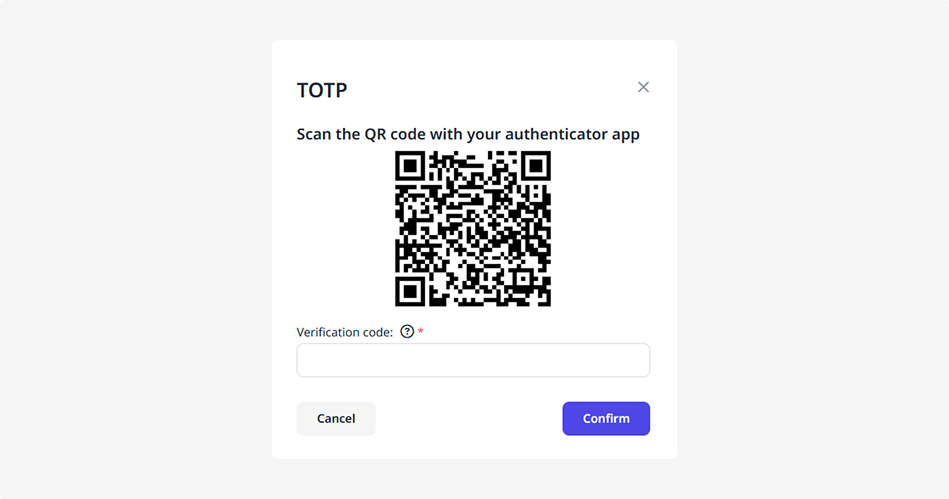
2. Open Profile and enable two-factor authentication3. Scan the QR code using your authenticator app

4. Enter the one-time code from the app and click Confirm
Two-factor authentication is now enabled.
How to sign in
1. Enter your username and password
2. Open the authenticator app on your phone
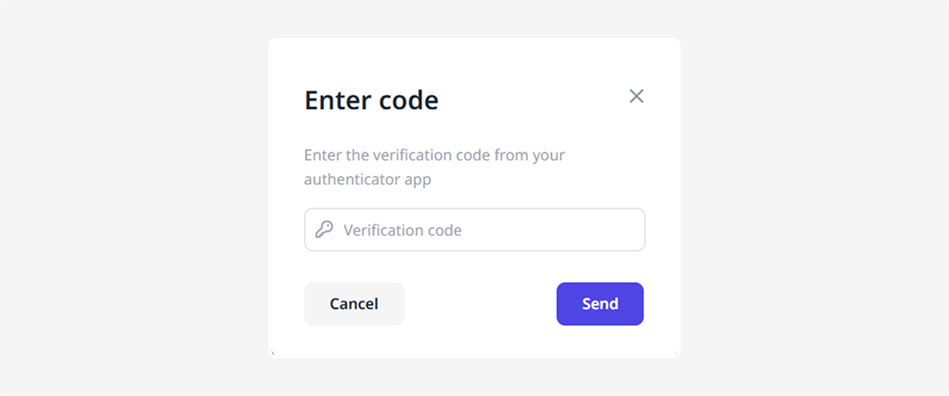
3. Enter the one-time code displayed in the app

4. Click Send
Sign in with Email
With this method, after you enter your username and password, we'll send a one-time verification code to your selected email address. Enter the code to complete the sign-in process.
How to enable
1. Click Enable and select the email address where you'd like to receive verification codes
2. Verify the selected email address

3. Enter the code from the email and click Confirm
If you don't receive the email, check your Spam folder or request a new code.
How to sign in
1. Enter your username and password
2. Open the email containing the one-time verification code
3. Enter the code on the sign-in page
How to disable two-factor authentication
If needed, you can disable two-factor authentication.
To do this, open Profile and click Disable next to the verification method you are currently using.
After two-factor authentication is disabled, you will only need your username and password to sign in.
How to quickly access profile settings
In the top-right corner of the panel, you’ll see your profile icon. Click it to open a small menu showing:
• Your profile name
• Your current balance
• Buttons for Profile settings and Log out

To open your settings, click Profile settings — you’ll be taken to the Profile page, where you can update your account details and password.
To sign out of the system, click Log out.