How to work with the Fleet section
In this article, we’ll go over how to use the Fleet section:
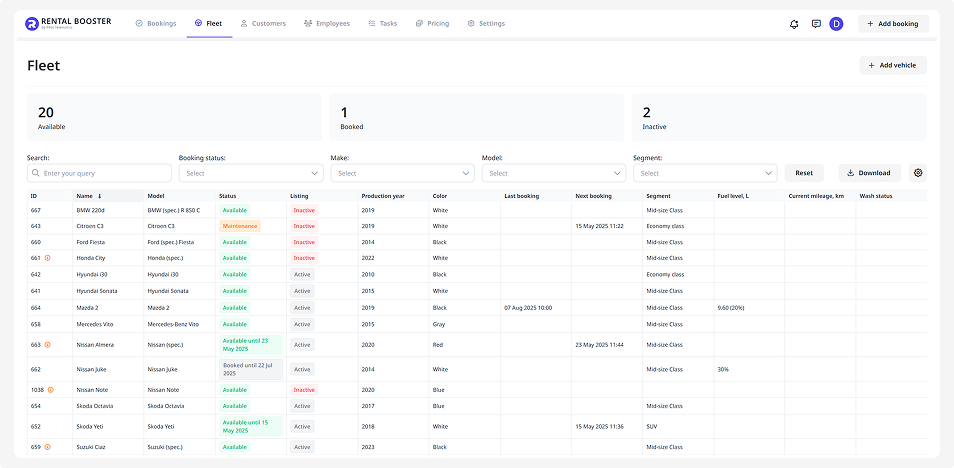
— where to view information about the current state of your fleet
— how to search and filter vehicles
— how to customize the vehicle list
Vehicle statistics
At the top of the section, you’ll see a summary of your fleet statuses.
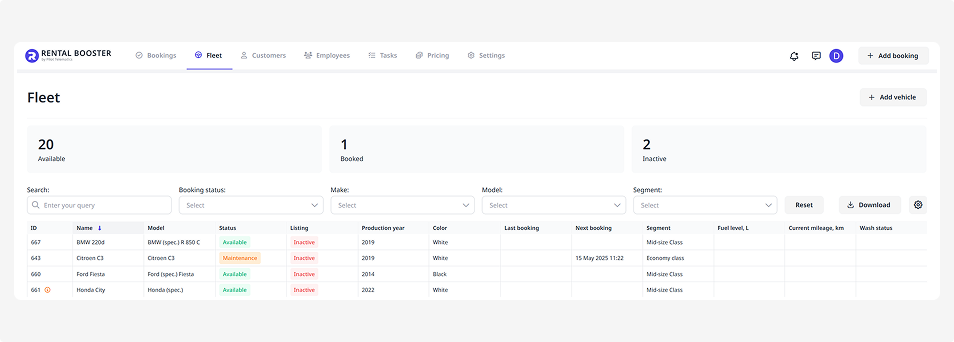
Here you can check up-to-date usage statistics for all vehicles:
• Available — number of vehicles that are free and ready for booking
• Booked — number of vehicles with active bookings
• Inactive — vehicles currently not in use (for example, under maintenance or with listing disabled)
-
Listed — vehicles that are displayed on customer-facing platforms, such as your rental website or external marketplaces
The list displays all vehicles in your fleet.
Here you can:
— view basic information about each vehicle
— check which vehicles are available, booked, or under maintenance
— see whether each vehicle is published on your website (listing status)
— open a vehicle card to edit its details
— use filters and sorting tools
What the statuses mean
Each vehicle in the table has a status. Statuses help you quickly understand what’s happening with each vehicle.
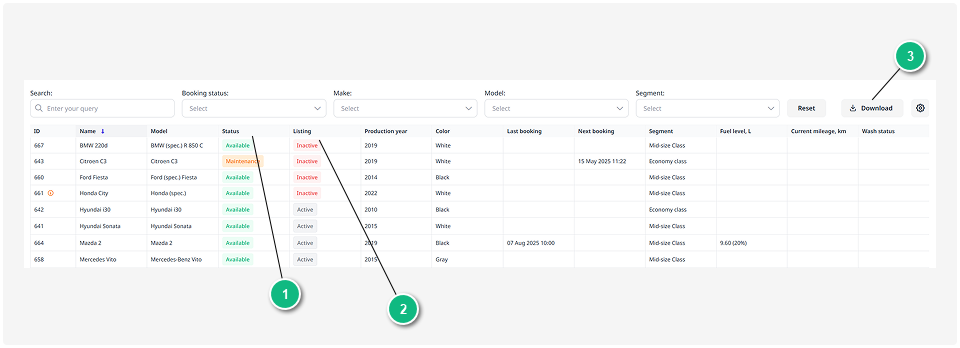
1 — Booking status
2 — Listing
3 — Save the vehicle list
To save the vehicle list on your device, click Download.
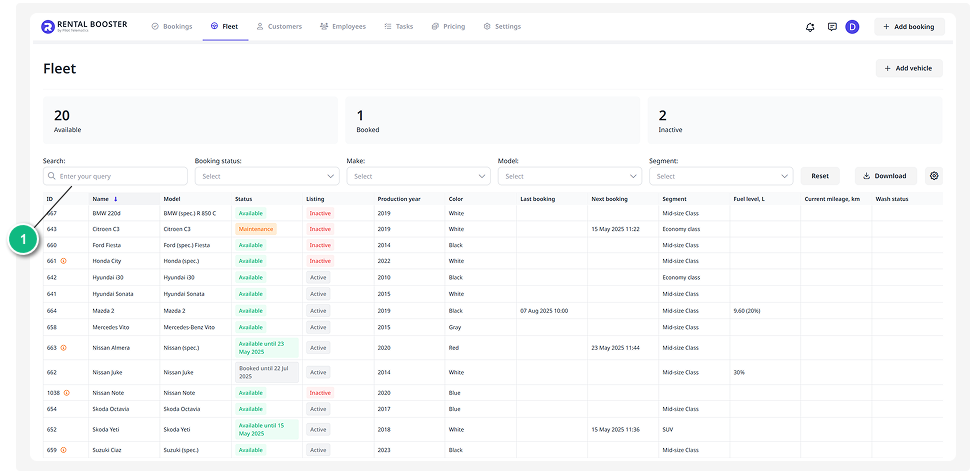
How to find a specific vehicle
To quickly find a specific vehicle, use the filters above the table. You can filter vehicles by booking status, brand, model, segment, and other parameters.
How to customize the list
The fleet list is displayed as a table. You can choose which columns to display:
1. Click the table settings button
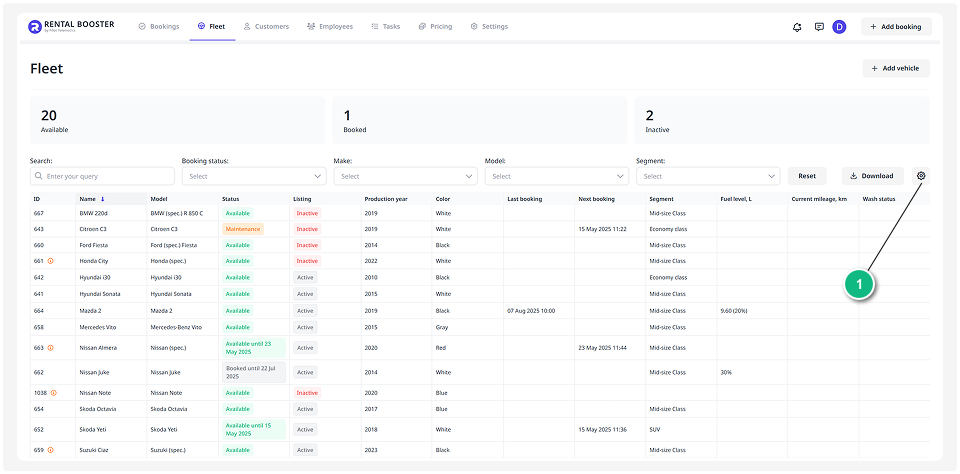
2. In the window that opens, check the boxes next to the columns you want to show
3. To enable filtering within each column, turn on Enable advanced column customization. Small filter fields will appear below the column names
Example: set the Listing filter to Active and the Status filter to Available — the table will then show only vehicles ready for booking.
4. After adjusting your columns, click Save
Your customized list will now display exactly the data you need.