
How to use Chat
Once the integration is connected, a Cha icon will appear in the top navigation bar. Click it to open the list of conversations.

This window brings together messages from the channels connected and configured in SendPulse, such as:
-
WhatsApp
-
Telegram
-
Instagram
-
Facebook
You can view conversations, read messages, and respond to customers directly from Rental Booster.

If you are not receiving messages, first make sure the required channels and chatbots are correctly configured in SendPulse. If the settings are correct, contact Rental Booster support.
|
How to use the AI assistant
Once connected, the AI assistant responds to customers automatically by default. While it is handling a conversation, you will see the following status: AI is responding to the customer
You can take over the conversation and respond personally at any time.
How to respond personally
1. Open the required conversation
2. Click Take over the conversation
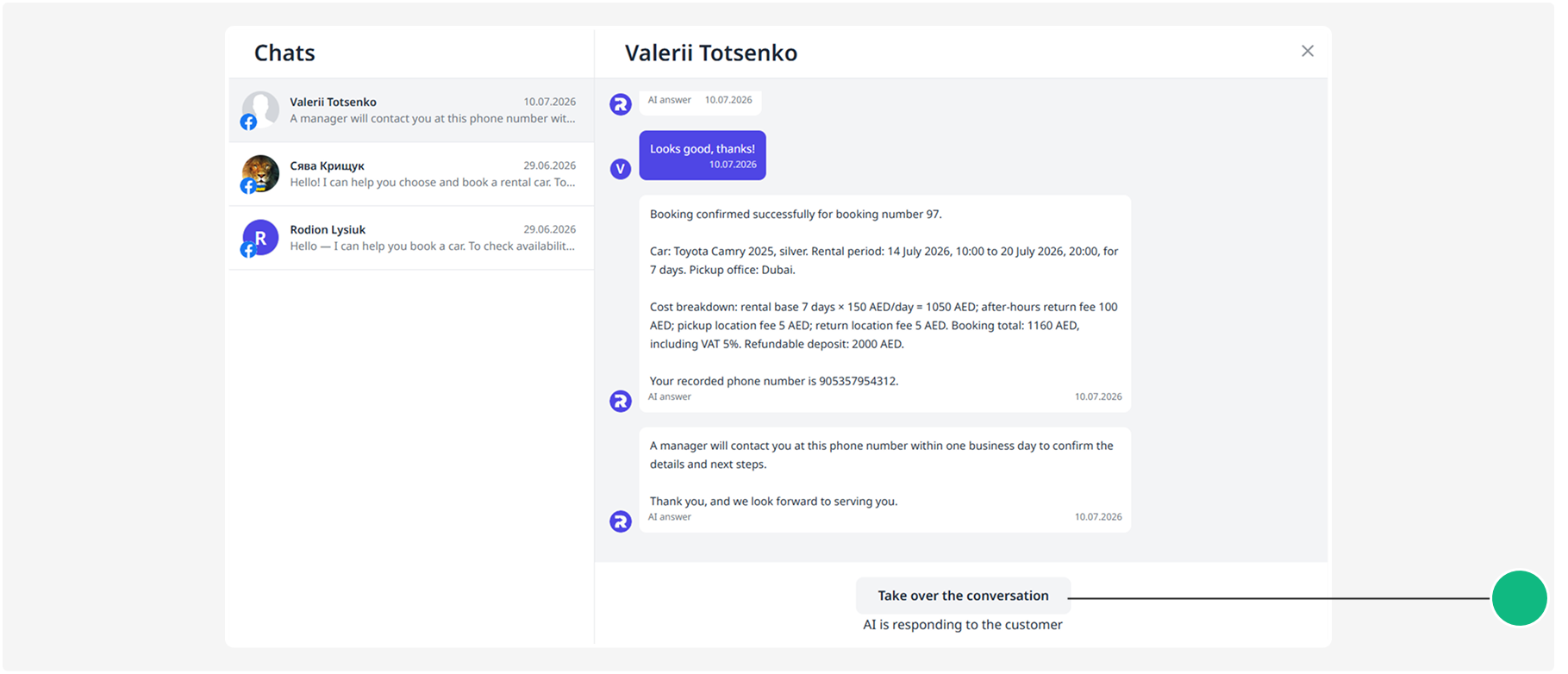
3. Write and send your message
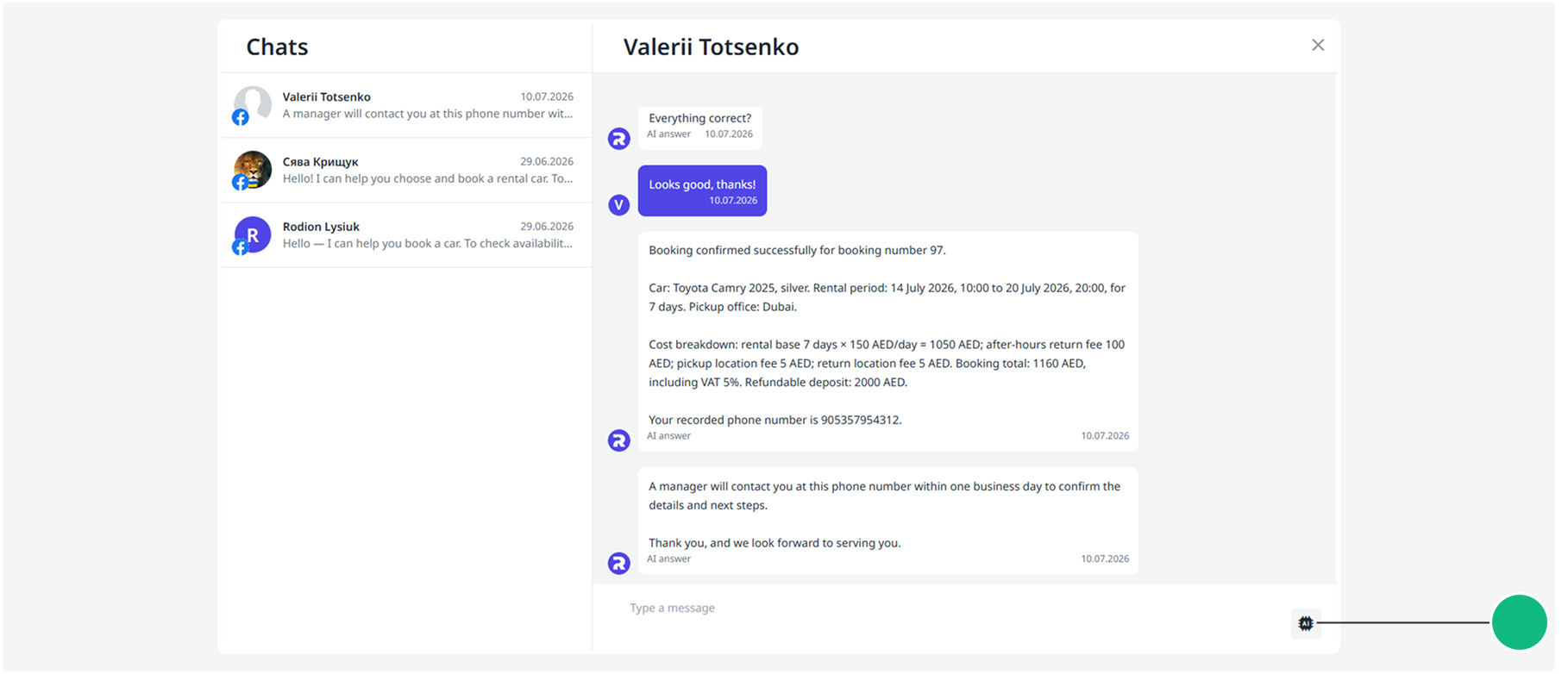
The conversation will switch to manual mode, and the AI assistant will stop sending automatic responses.
How to hand the conversation back to the AI assistant
To let the AI assistant handle the conversation again, click the AI icon in the message field.
Message reply window
Some Meta channels have a 24-hour reply window. If more than 24 hours have passed since the customer’s last message, you may no longer be able to send a regular reply in Chat.
To continue the conversation, wait for the customer to send a new message. Once they do, a new 24-hour reply window will begin.
This restriction is set by Meta and is not controlled by Rental Booster.