How to sign in to Rental Booster
To get started, go to the login page: https://rb.pilot-gps.com. You’ll see the login form appear.
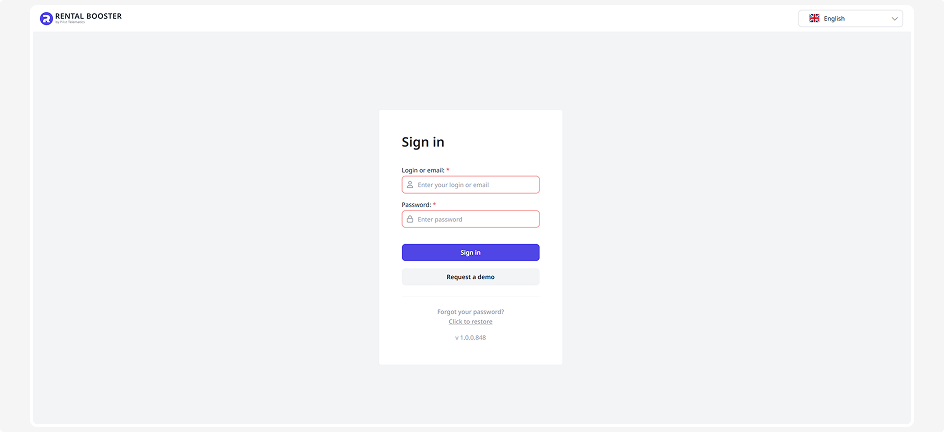
What to do
1. Enter your login or email
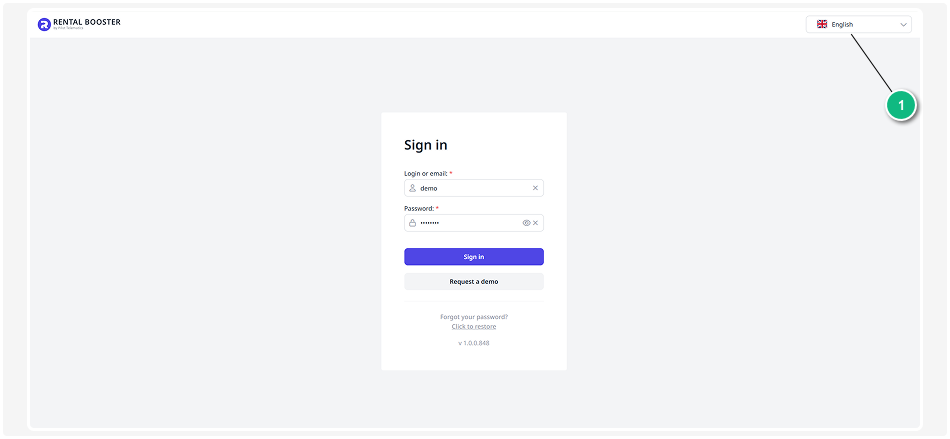
Type in the username or email address you used when you first connected to the CRM system.
2. Enter your password
If you want to double-check what you typed, click the  icon — it will make your password visible.
icon — it will make your password visible.3. Choose your language
In the top-right corner of the login form, you’ll see a language switcher.
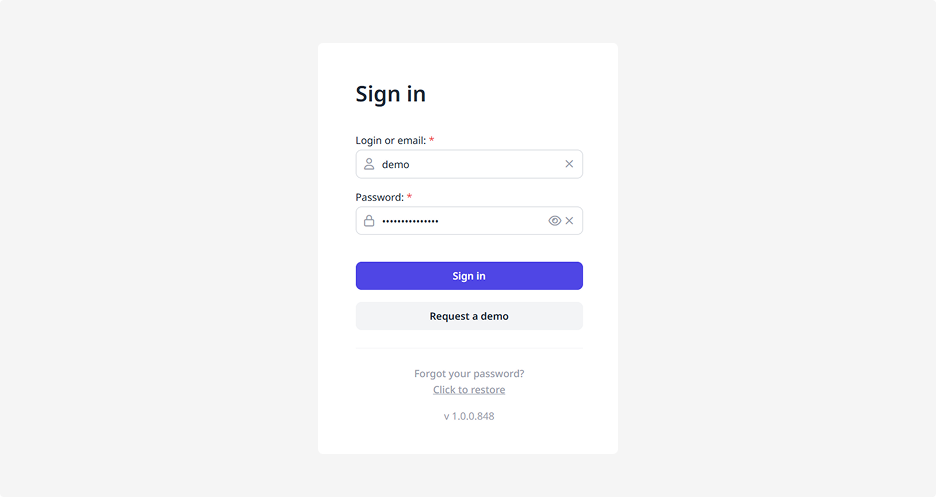
4. Click Sign in
After that, you’ll be signed in to the CRM and can start working right away.
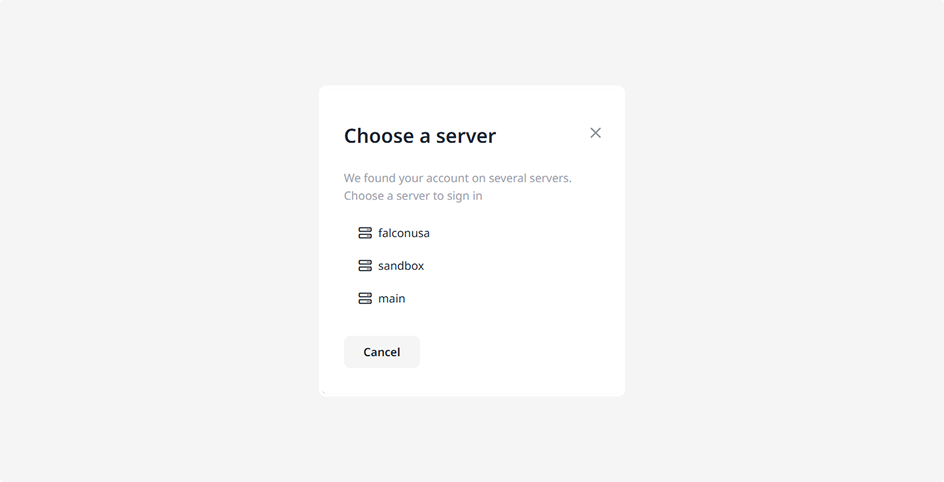
In some cases, your credentials might match accounts on different servers. If that happens, the system will ask you to select which server you’d like to log into — just choose the correct one and continue working.
How to sign in from an invitation
When you’re added to the system as an employee, you’ll receive an invitation email. This email is needed to confirm your address and finish your registration.
After clicking the link in the email:
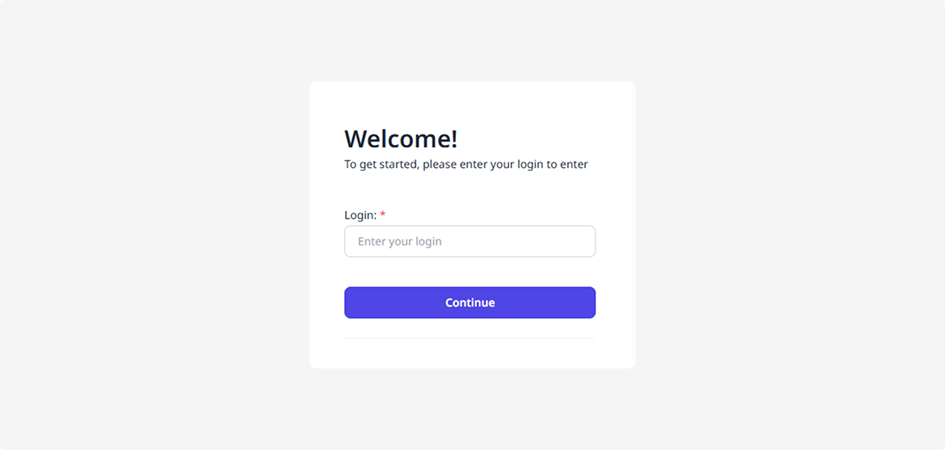
1. Create a login
This is the name you’ll use to sign in. Enter it and click Continue.

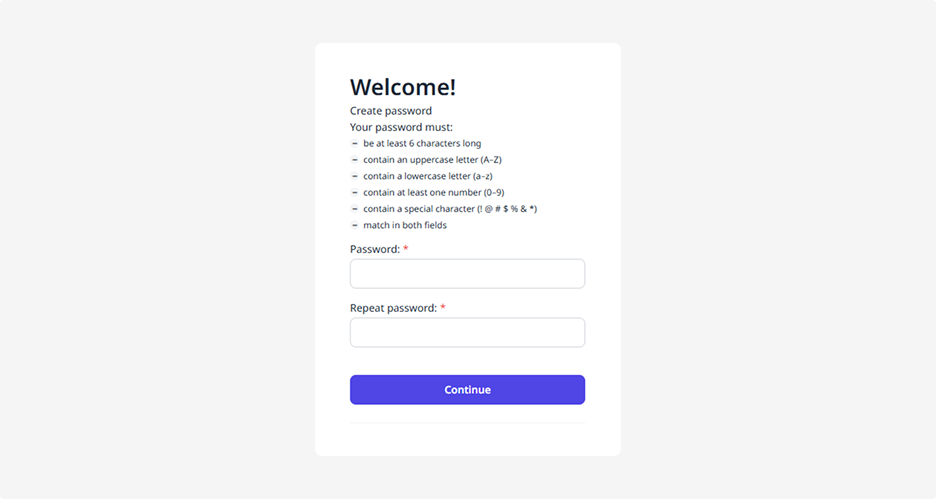
2. Create a password
Your password must be at least 6 characters long and include at least one uppercase and one lowercase letter.
3. Click Continue when you’re done.
4. You’re all set! You’ll be redirected straight to Rental Booster and can start working immediately.
If you forgot your password
1. On the login page, click the link Click to restore
2. Enter your login
3. Click Reset password
4. We’ll send a password reset link to the email address connected to your account
5. Open the link from the email and create a new password