
How to extend a booking
If the customer wants to continue their rental, you can extend the booking.
How to extend a booking
1. Open the required booking
2. On the booking page, click the three dots in the top-right corner
3. Select Extend booking
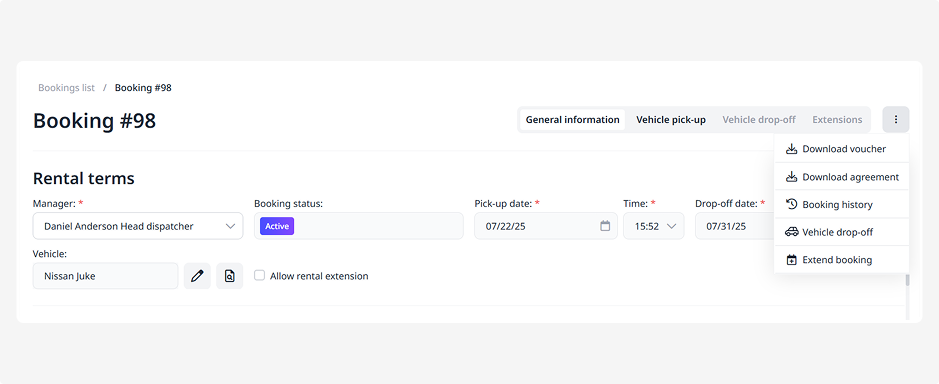
4. A form will open with several blocks that need to be completed:
• Information
• Extras
• Payments
• Calculation
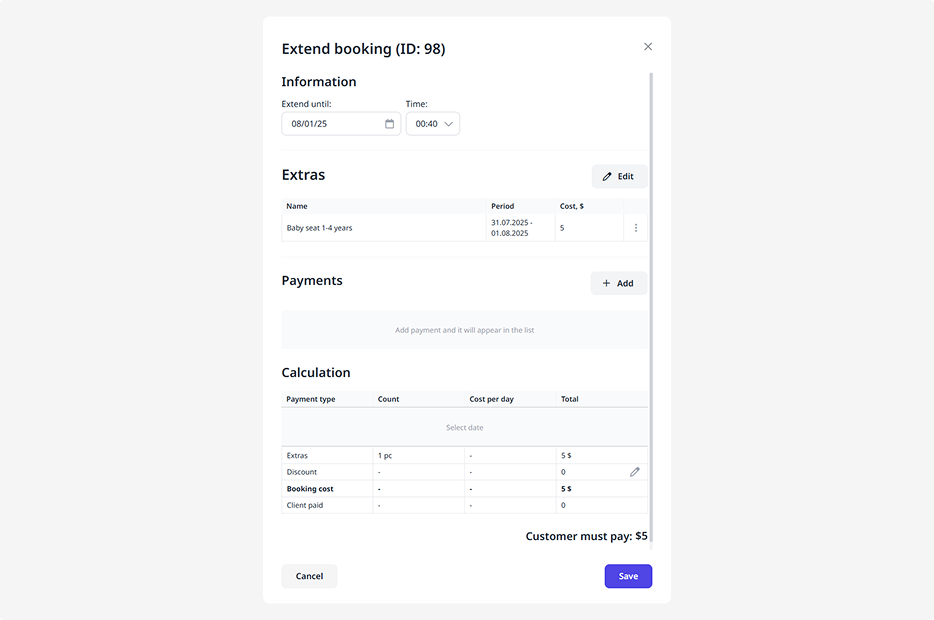
Information
Specify the new rental end date and time:
• Extend until — select the new end date of the rental
• Time — specify the exact vehicle return time
Extras
In the Extras block, you’ll see the current services linked to the booking.
To modify a service duration or remove it, click the three dots next to the service and select the required action.
To add a new service:
1. Click Edit
2. Select the service from the list
3. Enter the daily cost
4. Choose the start and end dates of the service
5. Click Save
Payments
If the customer made an additional payment for the extension, record it here.
To add a payment:
1. Click Add
2. Select the payment method — card, cash, or bank transfer.
3. Enter the payment amount.
4. Click Save
Calculation
This block displays detailed pricing information:
• Rental cost — for the selected extended period
• Extras cost — total cost of additional services
• Total amount due
• Information about previous payments
You can also apply a discount or markup here:
1. Click the adjustment icon 
2. Enter the percentage
3. Specify whether it applies to rental or extras
4. Click Save
When all information about the extension is completed, click Save — the booking will be extended.