
Employees
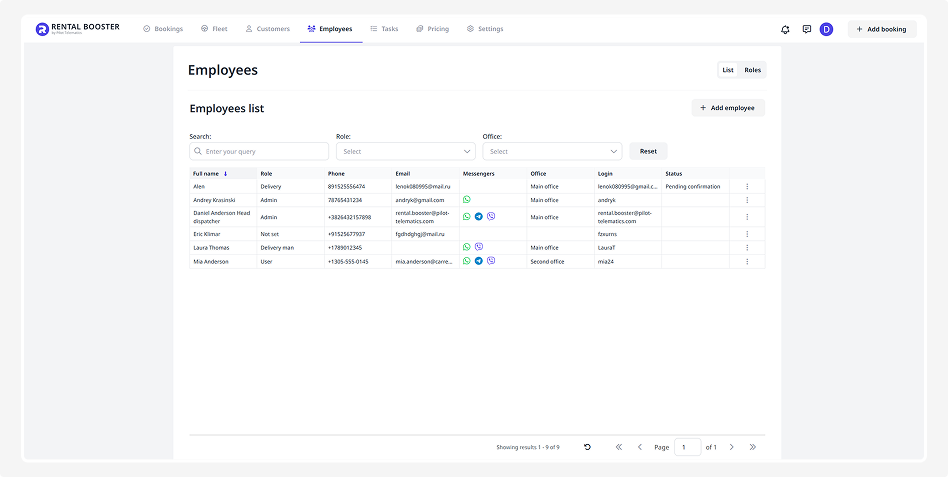
In this tab, you can add new employees and manage the details of those who already work in your company.

How to work with the employee list
In the Employees tab, you can view all key information:
• Name
• Role
• Phone, email, messengers
• Office
• Login for system access
• Status — shows whether the employee currently has access to the system
How to add an employee
If a new team member joins your company, add them to the system:
1. Click Add employee
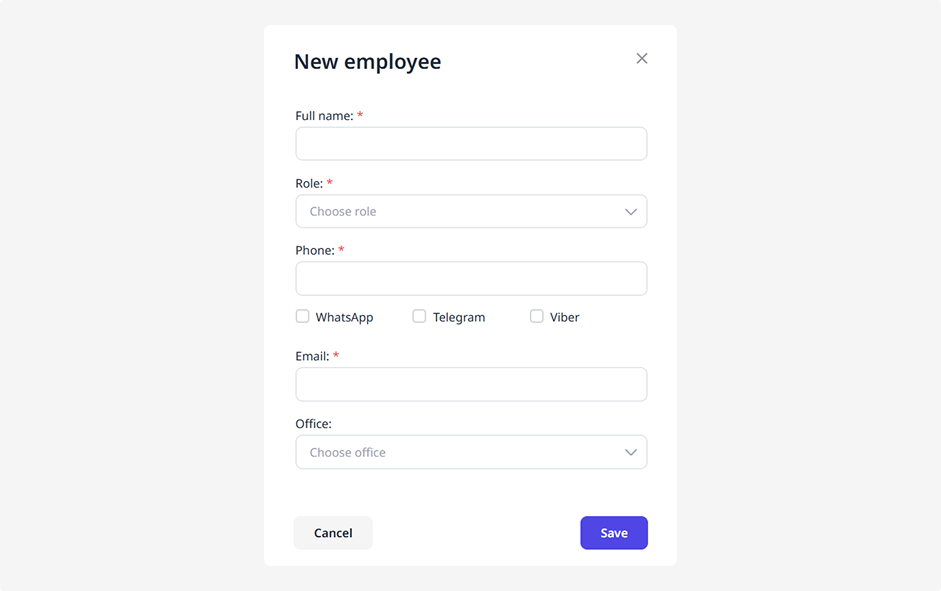
2. In the pop-up window, fill in the following details:
• First and last name
• Role — select from the list of predefined roles (set up in the Roles tab). The role determines which functions the employee can access
• Phone — the employee’s work phone number
• Messengers — select where it’s easiest to contact them: WhatsApp, Telegram, or Viber
• Email — the invitation will be sent to this address, allowing the employee to access the system
• Office — assign the employee to one of the offices added in the Company subsection
3. Click Save. The employee will appear in the list
How to manage an employee
Click the three dots on the right side of the employee’s row to open the actions menu:
• Edit — open the employee card to update information, change their role, or reassign them to another office.
• Block — disable the employee’s access to the system.
• Unblock — restore the employee’s access.
• Delete — permanently remove the employee’s account.
-
Resend invitation — when you create an employee, an invitation email is automatically sent to them with a registration link for Rental Booster. If the employee hasn’t received the email, click this button to resend the invitation again