Customer card
The customer card is where all customer information is stored.
It opens when you:
— click Add customer
— or double-click a customer in the general list
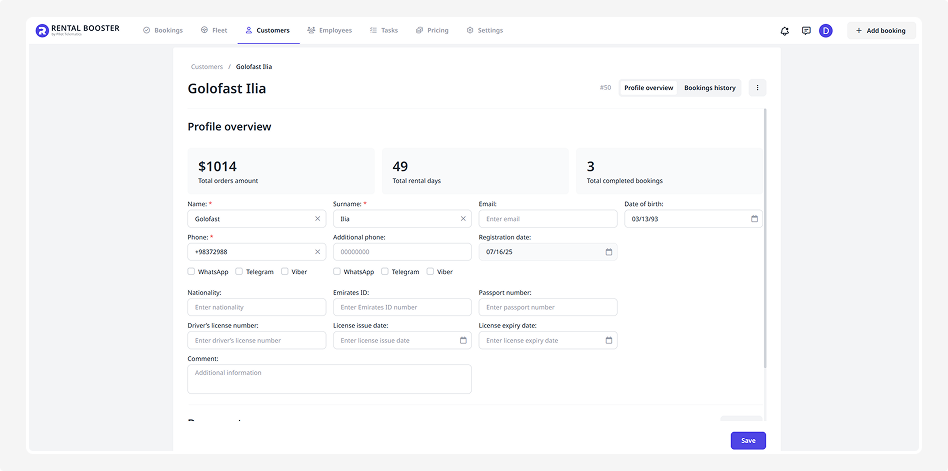
The card includes two tabs:
This tab is divided into two blocks:
• Profile overview
• Documents
Profile overview
At the top of the card, you’ll see the customer’s booking statistics:
• Total amount of bookings
• Total rental days
• Number of completed bookings
Below that is the customer information form, which includes:
• First and last name
• Email
• Date of birth
• Phone numbers and messengers
• Registration date — filled in automatically when the customer profile is created
-
Nationality
• EID number
• Passport series and number
• Driver’s license number
• Driver’s license expiry date
All completed customer details are automatically linked to their bookings.
Documents
In the Documents block, you can upload the files required when adding a customer.
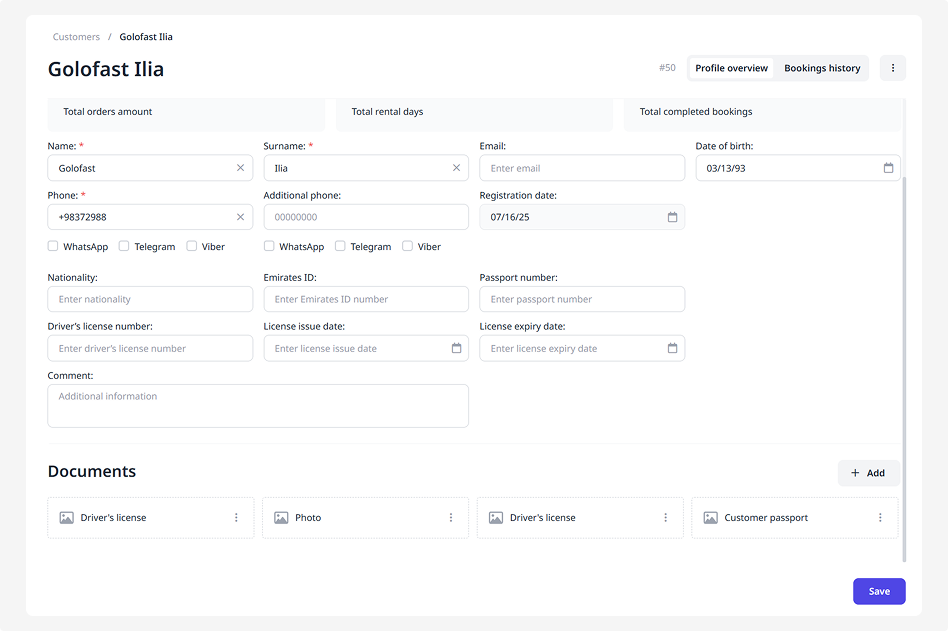
By default, the system already includes forms for the driver’s license and passport — you only need to attach the actual files.
How to add a document:
1. Click the three dots next to the desired form
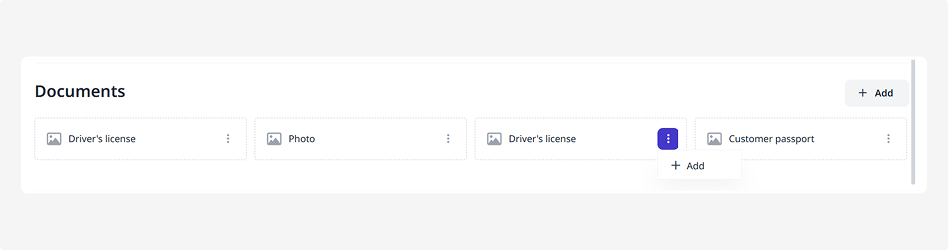
2. Select Add
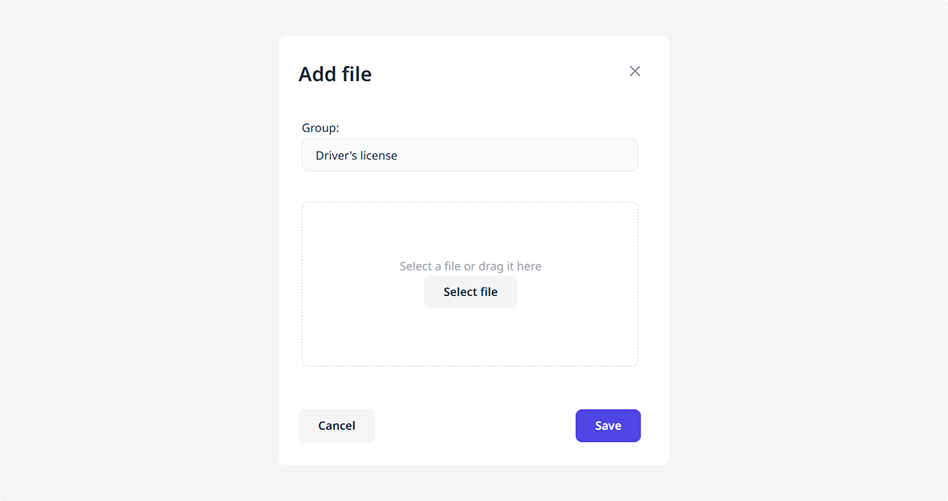
3. Upload the file and click Save
If the required document type is missing, there are two options:
— add a new document type to the general package in Booking settings. It will then appear in all future forms.
— upload a document only for this specific customer: click Add in the Documents block, enter the document name, and save it.
This tab displays the entire rental history for a specific customer.
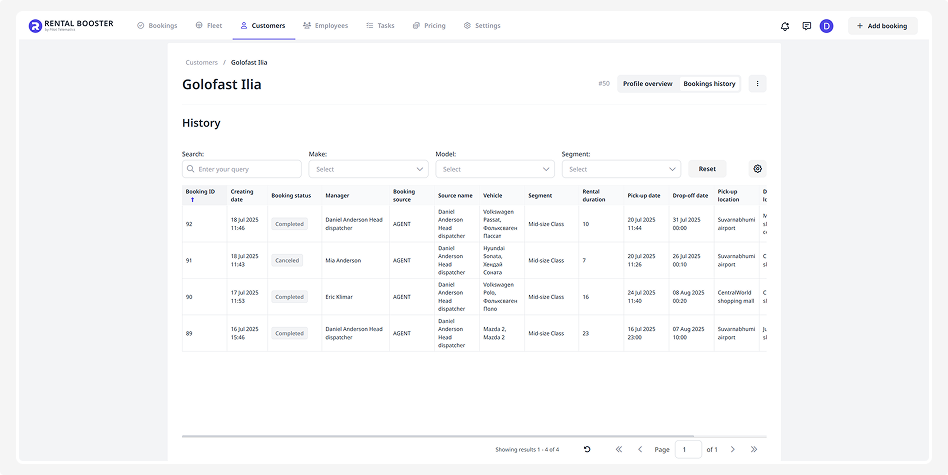
You can:
— view all of the customer’s bookings
— check booking statuses, dates, and pick-up/drop-off locations
— see which employee created each booking
— find a specific booking using filters or the search bar
How to delete a customer
If you need to remove a customer from the database:
1. In the customer card, click the three dots
2. Select Delete customer
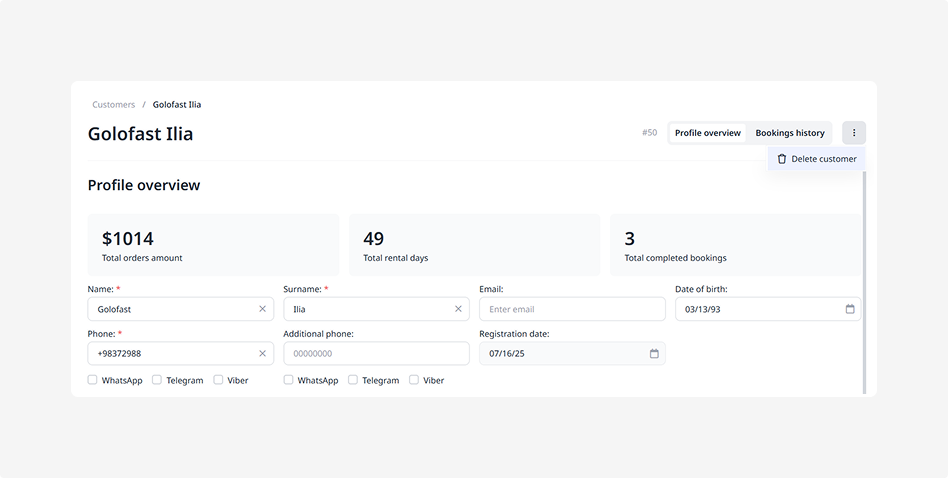
3. Confirm the deletion — the customer will be removed from the database