Company
The Company subsection contains your company information and booking rules.
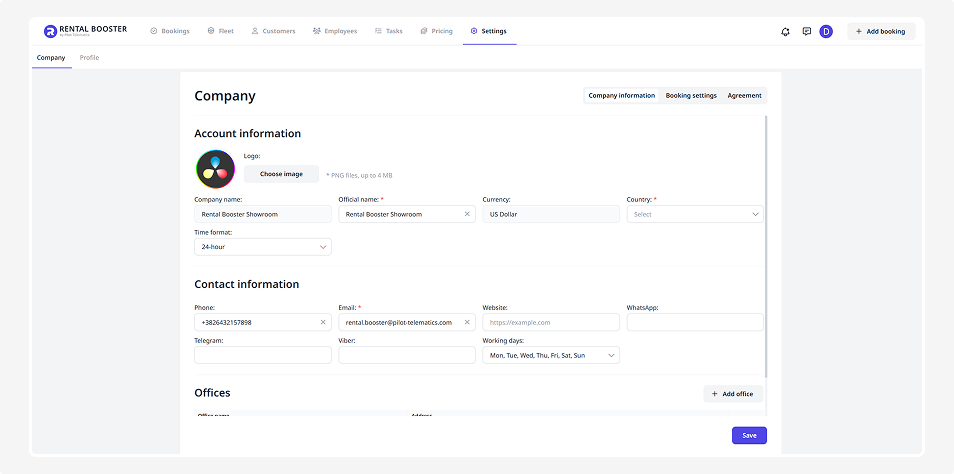
It includes three tabs:
In this tab, you can fill out your company details, contact information, and office addresses.
Account information
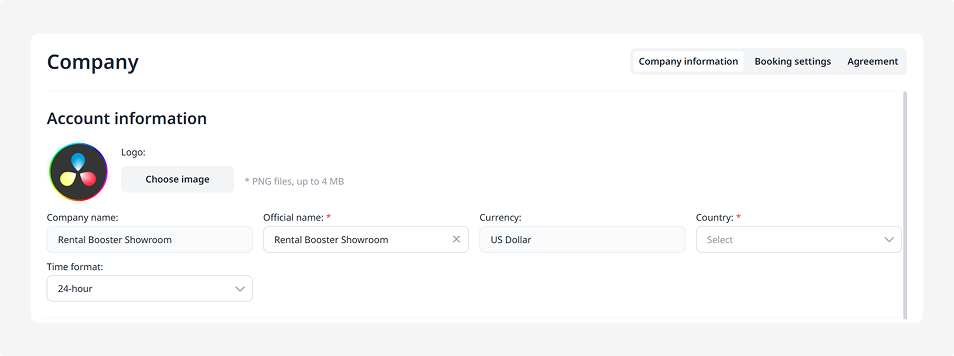
• Logo
To add a logo:
1. Click Choose image
2. Find the file on your computer
3. Upload a PNG image up to 4 MB
Once uploaded, the logo will immediately appear in your profile.
• Company name — the name your customers recognize
• Official name — your company’s legal name
• Currency — the currency used for transactions
• Country — select your country from the list
• Time format — choose between 12-hour or 24-hour format
• After-hours fee — an additional fee applied to bookings that start or end outside your working hours
• VAT — Value Added Tax. Enter the VAT rate as a percentage. If enabled, VAT will be automatically added to the booking total.
Contact information
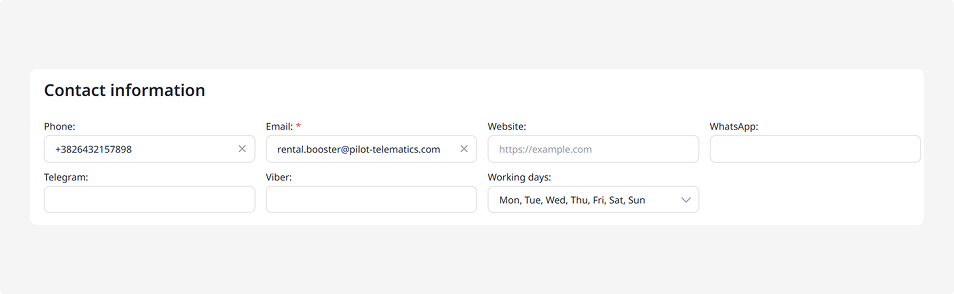
• Phone — main contact number.
• Email — customer support or contact email.
• Website — link to your company website (if any).
• Messengers — you can provide contact details for WhatsApp, Telegram, or Viber.
• Working days — indicate the days when your company operates.
Offices
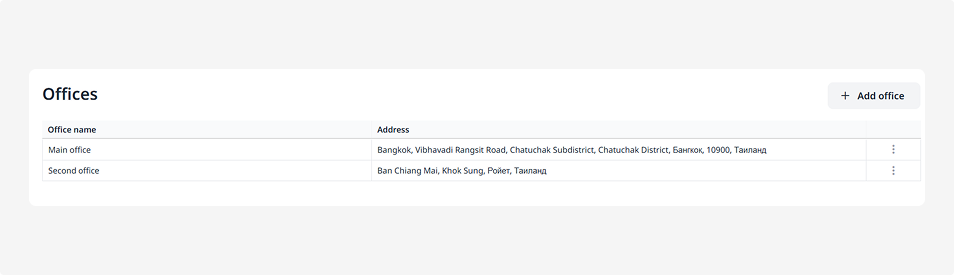
Add addresses for pick-up and drop-off locations:
1. Click Add office
2. In the pop-up window, enter the office name and select the country, city, and full address
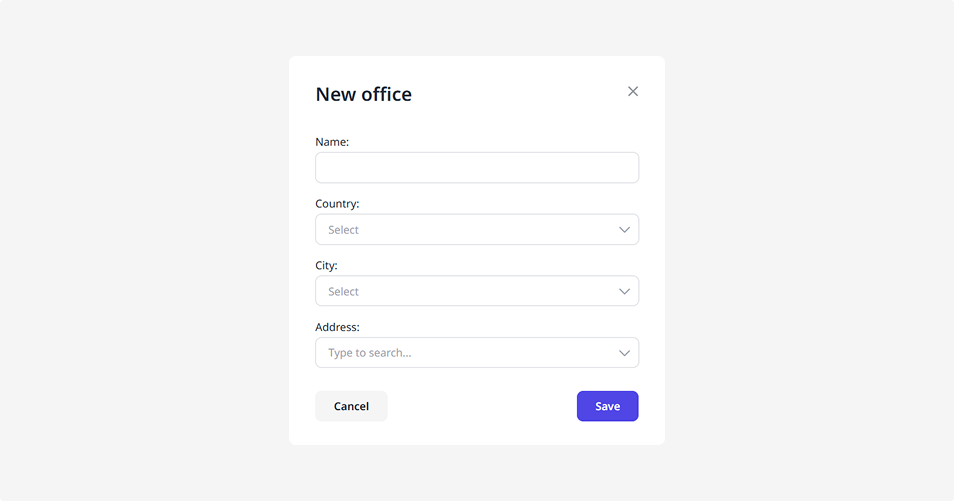
3. Click Add. The office will now appear in the list
To edit or delete an office, click the three dots next to it and choose the appropriate action.
After entering all company details, click Save.
The Booking settings help you define the rules for how bookings work — rental process, required documents, payment deadlines, and vehicle preparation times.
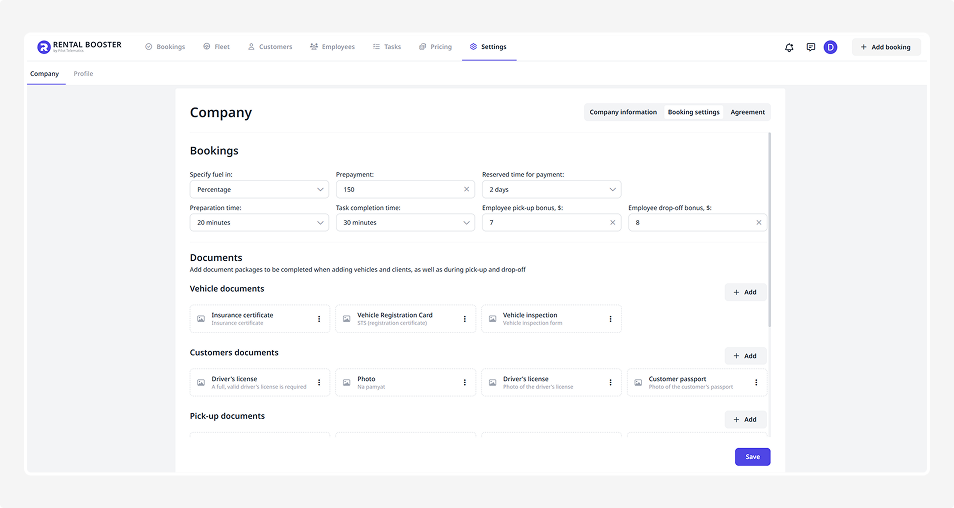
Bookings
Here you can configure how the booking process functions.
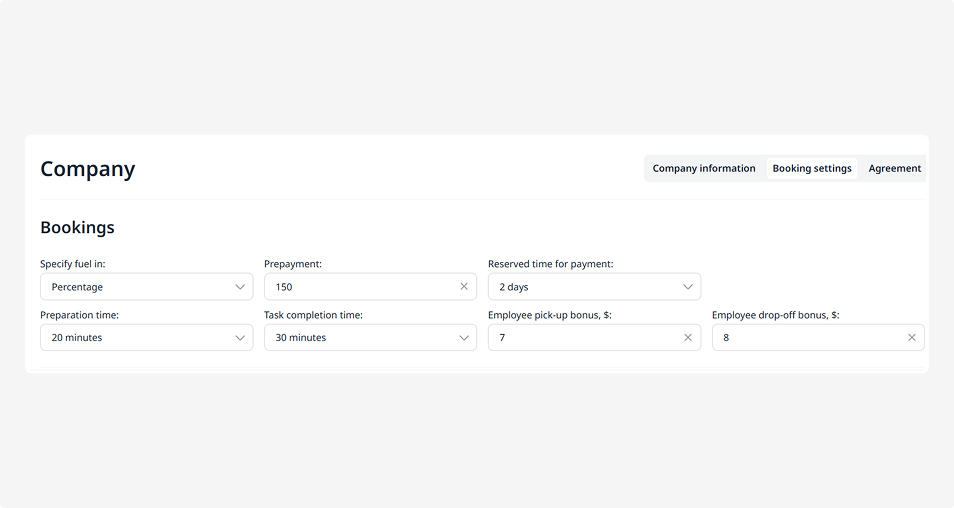
You can set up:
• Fuel format — choose how fuel level is displayed: in liters or as a percentage
• Prepayment — specify the amount a customer must pay upfront
• Reserved time for payment — set how long a customer has to complete payment before the booking is automatically cancelled
• Preparation time — define how much time is required between bookings for cleaning, fueling, and inspection
• Task completion time — specify how long it typically takes to complete a booking-related task
• Employee pick-up bonus — set the reward amount for the employee who hands over the vehicle to the customer
• Employee drop-off bonus — set the reward amount for the employee who receives the vehicle back
In this block, you can define which documents must be uploaded at different booking stages:
• When adding a vehicle
• When adding a customer
• During pick-up and drop-off
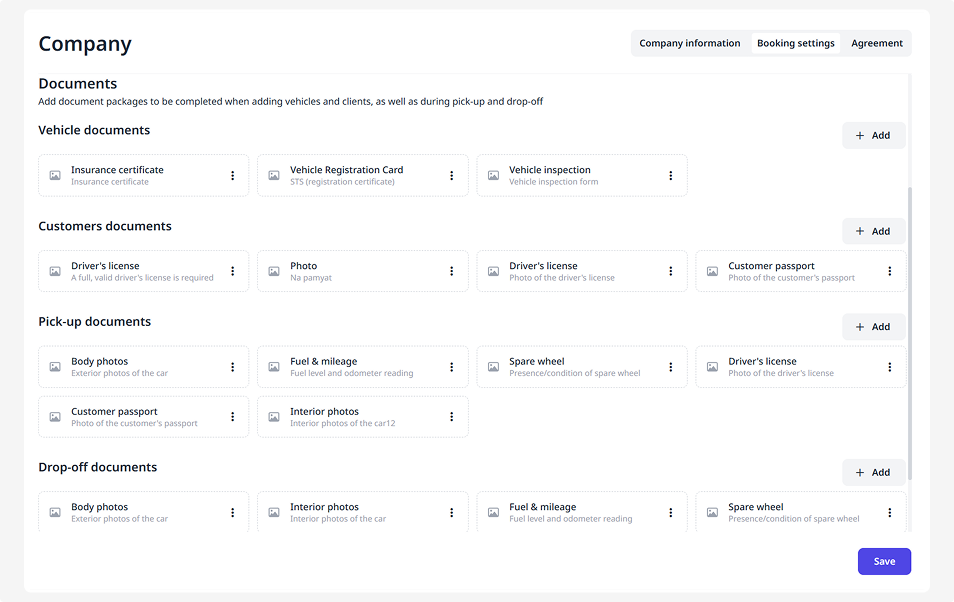
After configuration, the system will automatically prompt you which documents need to be uploaded.
By default, basic forms are already included. These cannot be edited and will always be attached to the corresponding stages.
You can also add your own custom forms, which can be edited as needed.
How to add a new document form
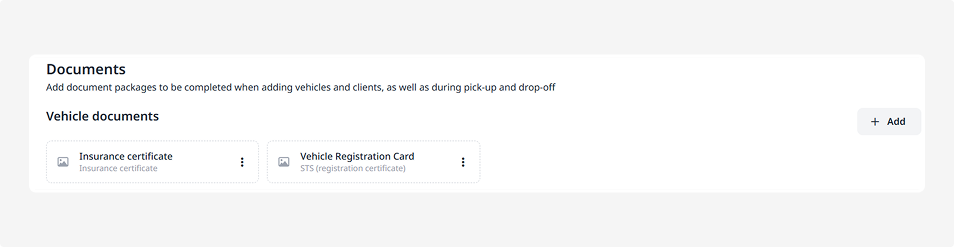
For example, if you want to ensure that a vehicle inspection report is always attached when adding a vehicle:
1. Go to the required document block (for example, for vehicles)
2. Click Add
3. In the window that appears, enter the form name (e.g., Vehicle inspection report) and description
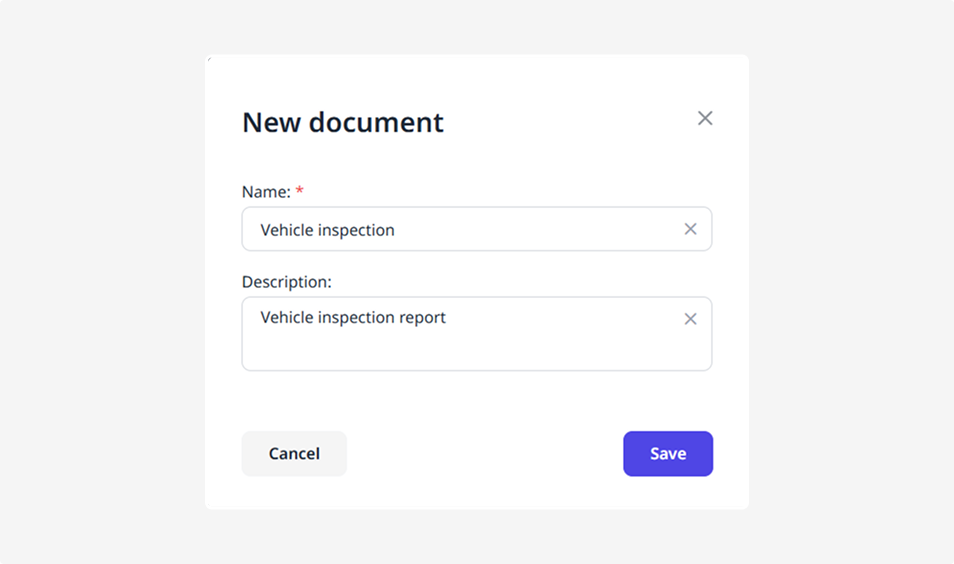
4. Click Save
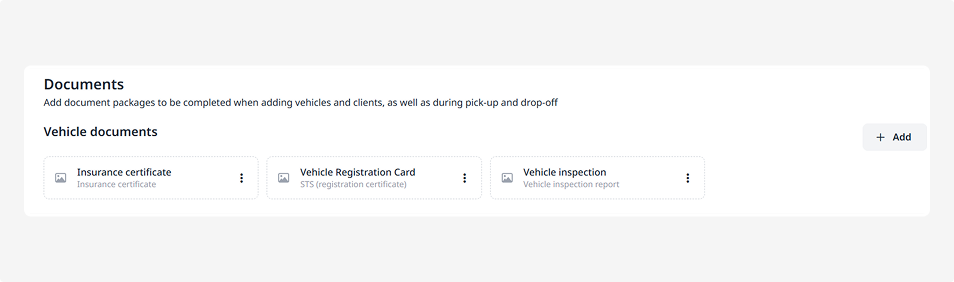
The Vehicle inspection report form will then appear in the document package for vehicles.
It will also appear on the vehicle page under the Documents block (in the Vehicle details tab).
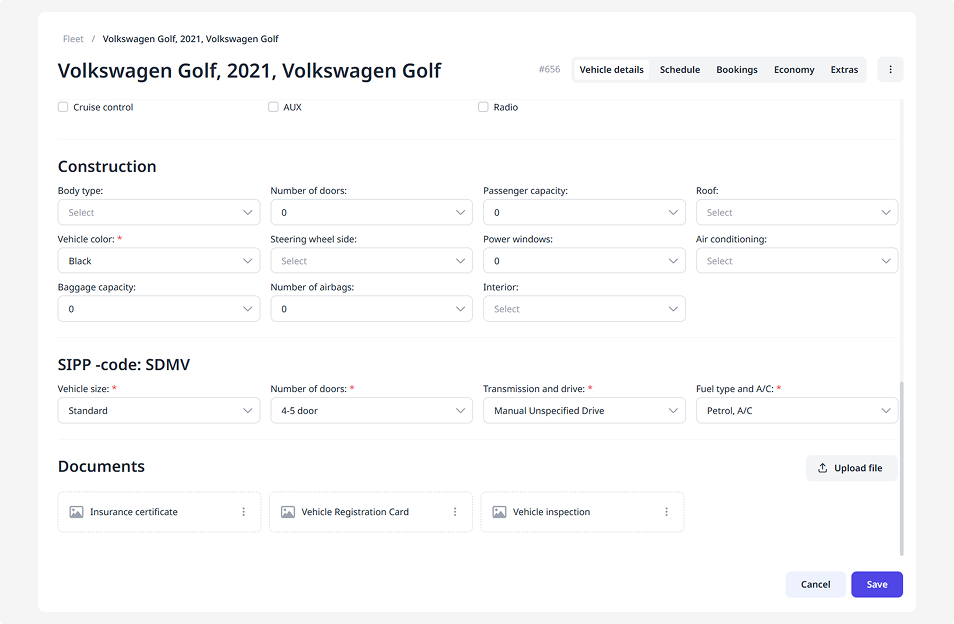
Now, when adding a vehicle, you can upload the required file directly into the form.
After completing the Booking settings, click Save to make sure all data is stored.
In this tab, you can set up rental rules and penalties that will be included in the agreement for every booking. You can also upload your company’s signature and download the agreement template.
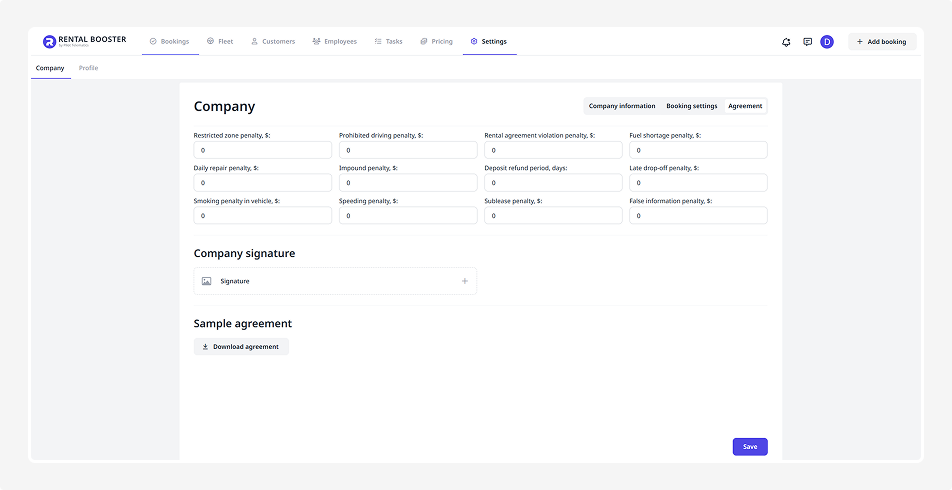
Setting up penalties and agreement terms
Here you can define penalty amounts and rules that help protect your company from vehicle misuse by customers.
• Restricted zone penalty — applied for driving in restricted areas such as deserts, nature reserves, or other prohibited zones
• Prohibited driving penalty — applied for extreme or unsafe driving, such as racing, drifting, off-roading, or participating in rallies
• Rental agreement violation penalty — charged for breaking key conditions of the rental agreement, such as late return or misuse of the vehicle
• Fuel shortage penalty — applied if the customer returns the vehicle with less fuel (or charge for an EV) than at pick-up
• Daily repair penalty — used if the vehicle was damaged by the renter and requires downtime for repairs; a daily fee can be applied
• Impound penalty — charged if the vehicle is seized by the authorities (for example, due to a traffic violation)
• Late drop-off penalty — applied if the renter returns the vehicle later than the agreed time
• Smoking penalty in vehicle — charged if the customer violates the no-smoking policy
• Speeding penalty — applied when the renter exceeds the allowed speed limit
• Sublease penalty — used if the renter illegally transfers the vehicle to another person
• False information penalty — charged if the renter provides or spreads false information about the company or vehicle that could damage your reputation
• Deposit refund period — specify the number of days after which the deposit is returned
Company signature
Upload your company’s electronic signature — it will be automatically added to all agreements:
1. Click the Upload signature button 
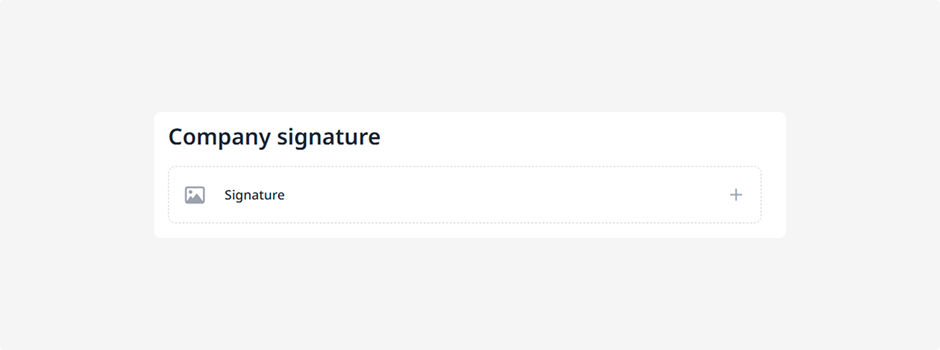
2. In the pop-up window, select the file from your computer
Select an image:
-
in PNG format
-
with a transparent background
-
up to 1 MB in size
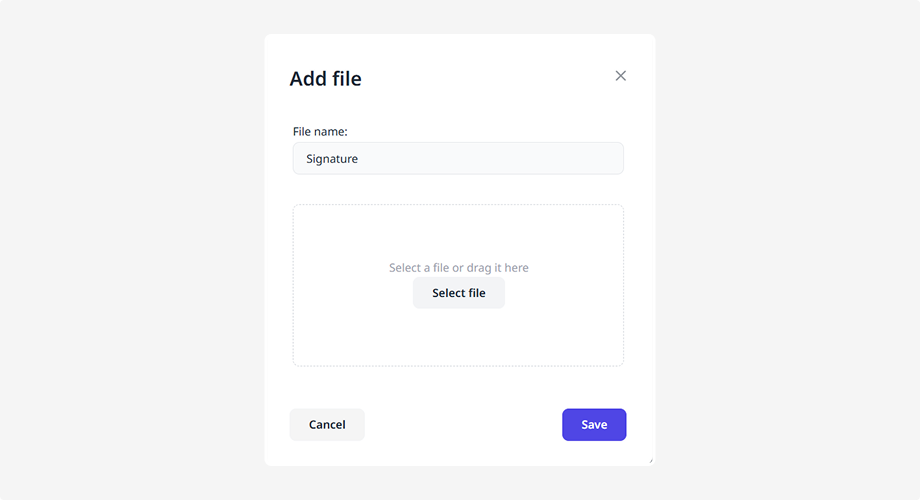
3. Click Save
Company stamp
Upload your company's stamp. It will be automatically added to agreements together with the signature.
1. Click Upload stamp button
2. In the dialog that opens, select a file from your computer
Select an image:
-
in PNG format
-
square
-
with a transparent background
-
without margins around the edges
-
up to 1 MB in size

3. Click Save
After uploading, the company signature and stamp will be automatically added to generated agreements.
A sample agreement with the company signature and stamp is shown below.

Sample agreement
Here you can download the sample agreement used by the system.
Click Download agreement to view or edit the sample document.

After completing the Agreement tab, click Save.